Search forgives what you would normally fix by hand: the wrong keyboard layout, Latin letters instead of Cyrillic, a typo, “ё” where “е” was meant. It looks through titles, authors with their aliases, narrators, series, genres, chapters and bookmark notes.
Search has a tab of its own and starts looking as you type, without waiting for a Find button. A counter above the results says how many were found and in how many milliseconds. Results are split into sections — Books, Authors, Series, Chapters — and every row leads where that thing lives: a book to its card, a chapter or a bookmark straight into the player at the right second.
Search is free and runs entirely on the device: queries go nowhere, history stays here. The index rebuilds itself whenever the catalog changes.
01/06
Where search starts
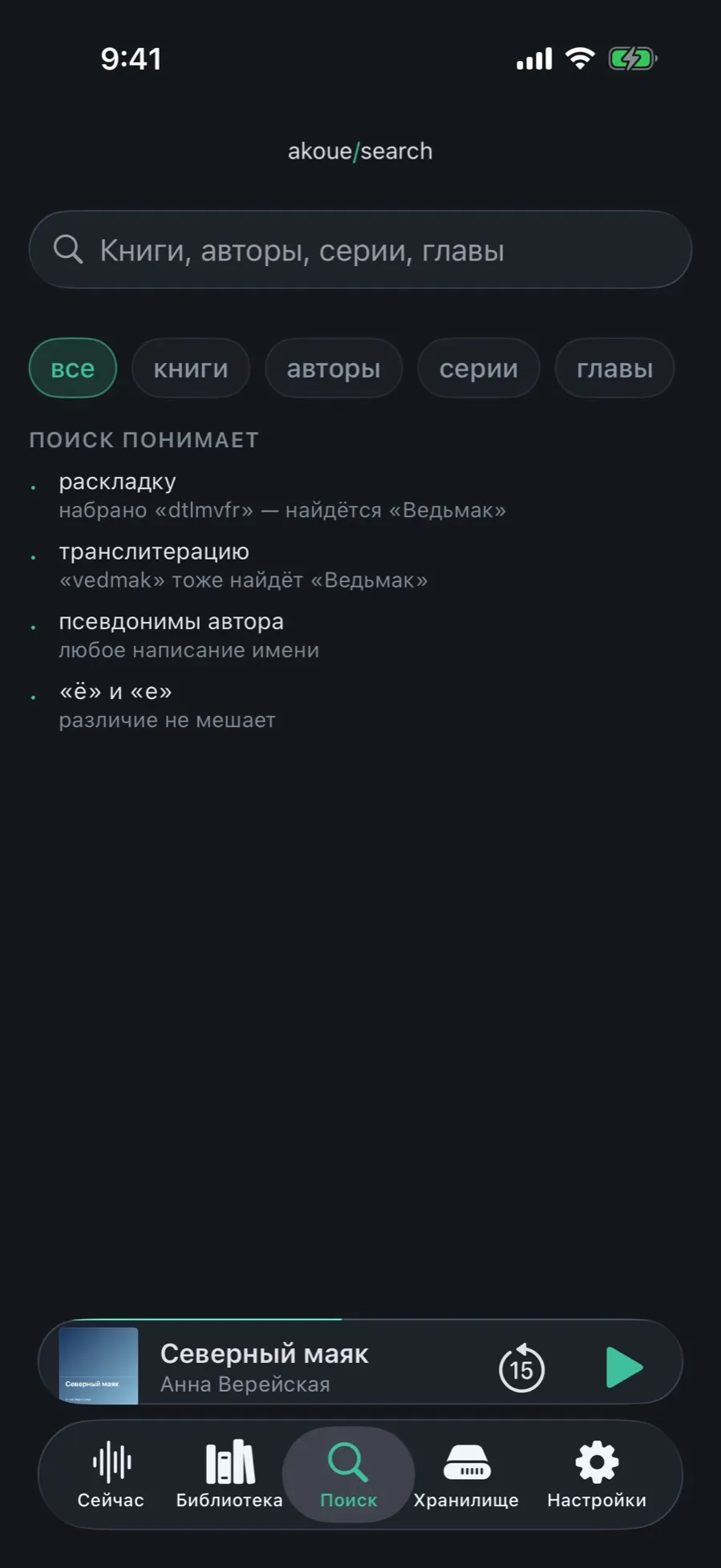
The empty search screen is not empty: it lists what search forgives and keeps your earlier queries.
Open the “Search” tab. The field reads “Books, authors, series, chapters”.
Below it is the scope strip: “all”, “books”, “authors”, “series”, “chapters”. “all” is selected by default.
Under that, the “Search understands” section: keyboard layout, transliteration, author aliases, “ё” and “е”.
Once you have searched before, “Recent queries” appears above it with a “Clear” button.
The query history is kept on the device only and never travels between iPhone and iPad.
02/06
Find a book without switching the keyboard
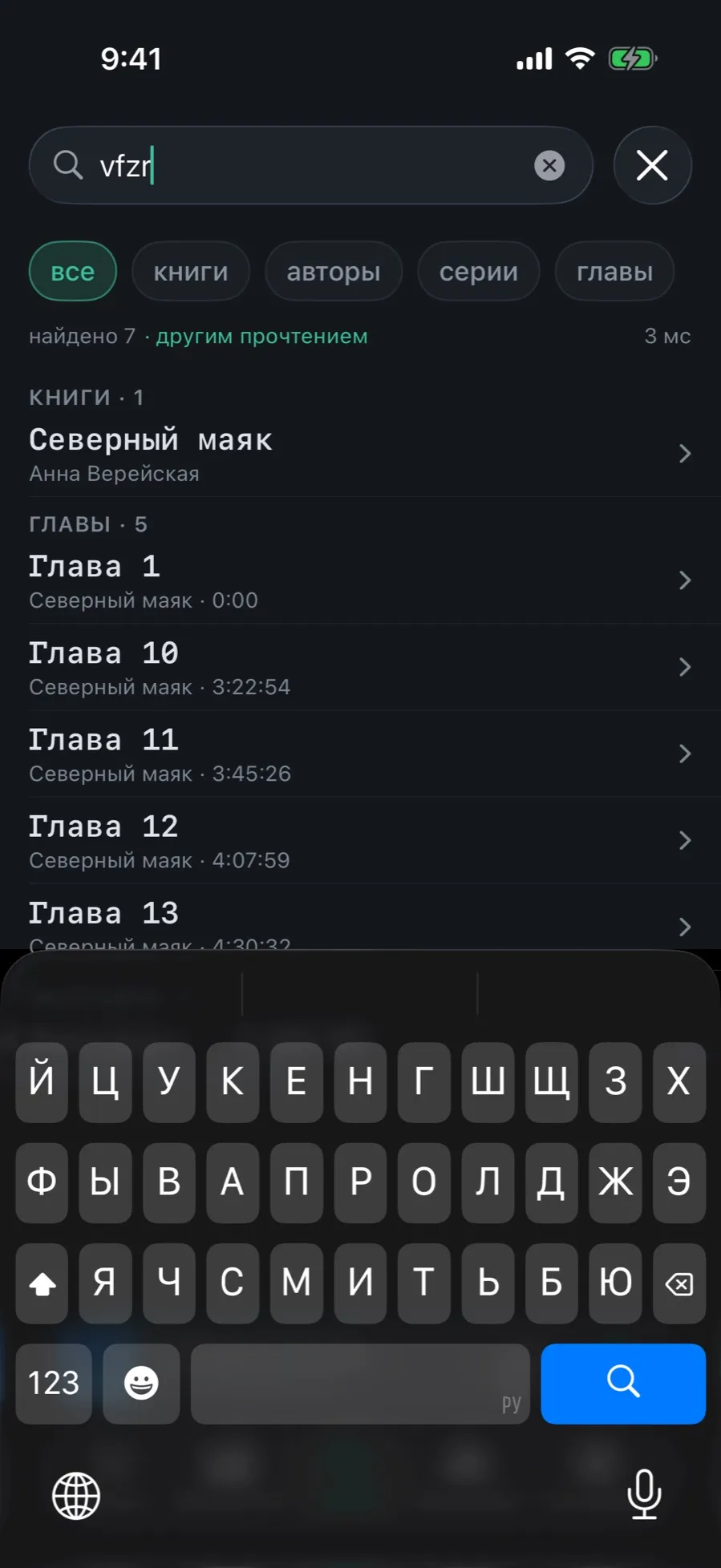
Typed the title with the wrong keyboard on? Search reads the letters off the same keys. Same with Latin: `vedmak` finds “Ведьмак”.
Type the title as it came out, without fixing the layout: vfzr instead of “маяк”.
Results appear on their own while you type.
The counter above the list gains an “in another reading” mark — the query was read differently from how it was typed.
Tap a book row to open its card, or a chapter row to start listening from there.
Another reading is only tried when the whole query is in one alphabet. Mixed input like “Deep Космос” is taken as deliberate and left alone.
03/06
What lands in the results
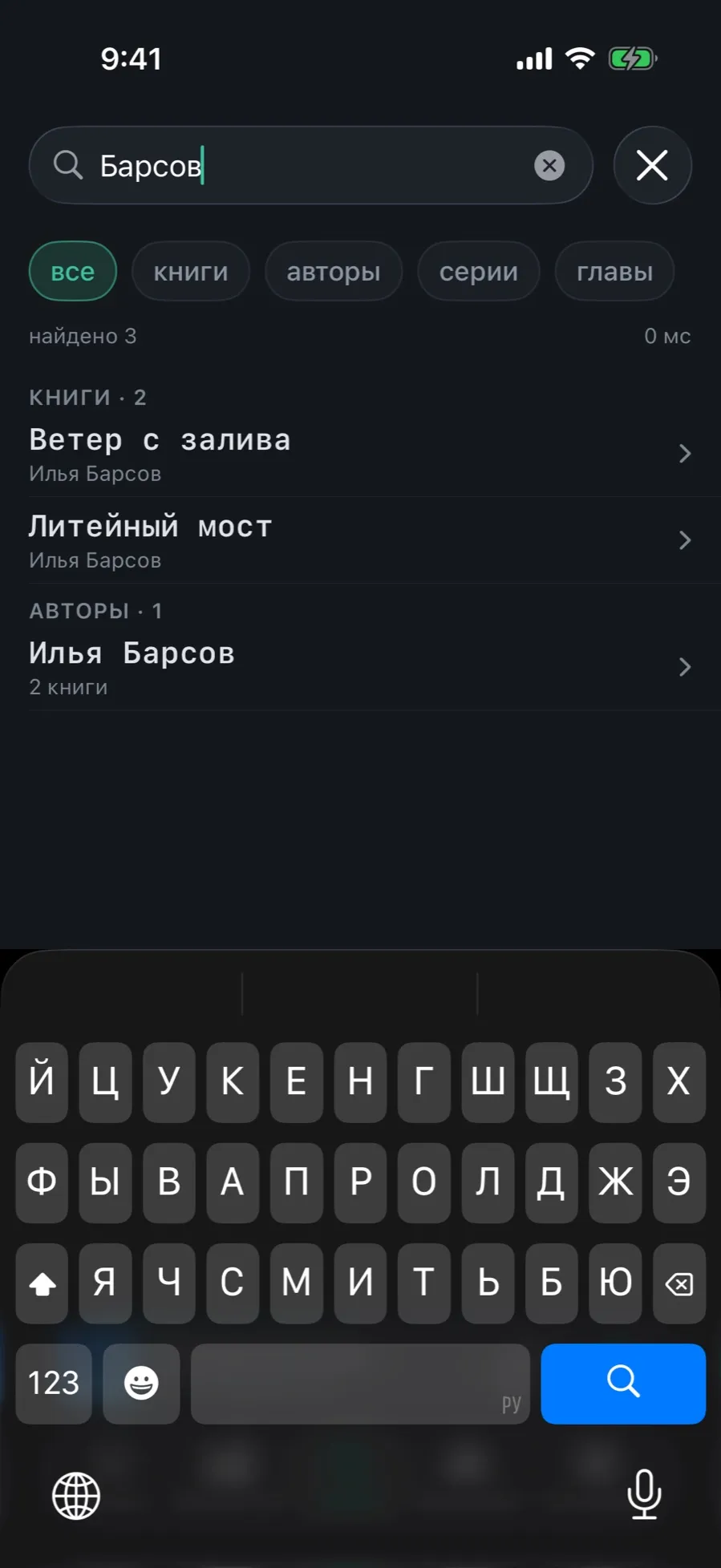
One query finds the book, the person, the series and the chapter. Results are not piled together but split into sections with counts.
Type the name of an author or a narrator.
The Books section holds their books, the Authors section holds the person, with a book count.
Tap the author row to open their card rather than a book.
An author is found by an alias and in Latin too: you do not have to reproduce the spelling stored in the catalog.
04/06
Narrow the search to one section
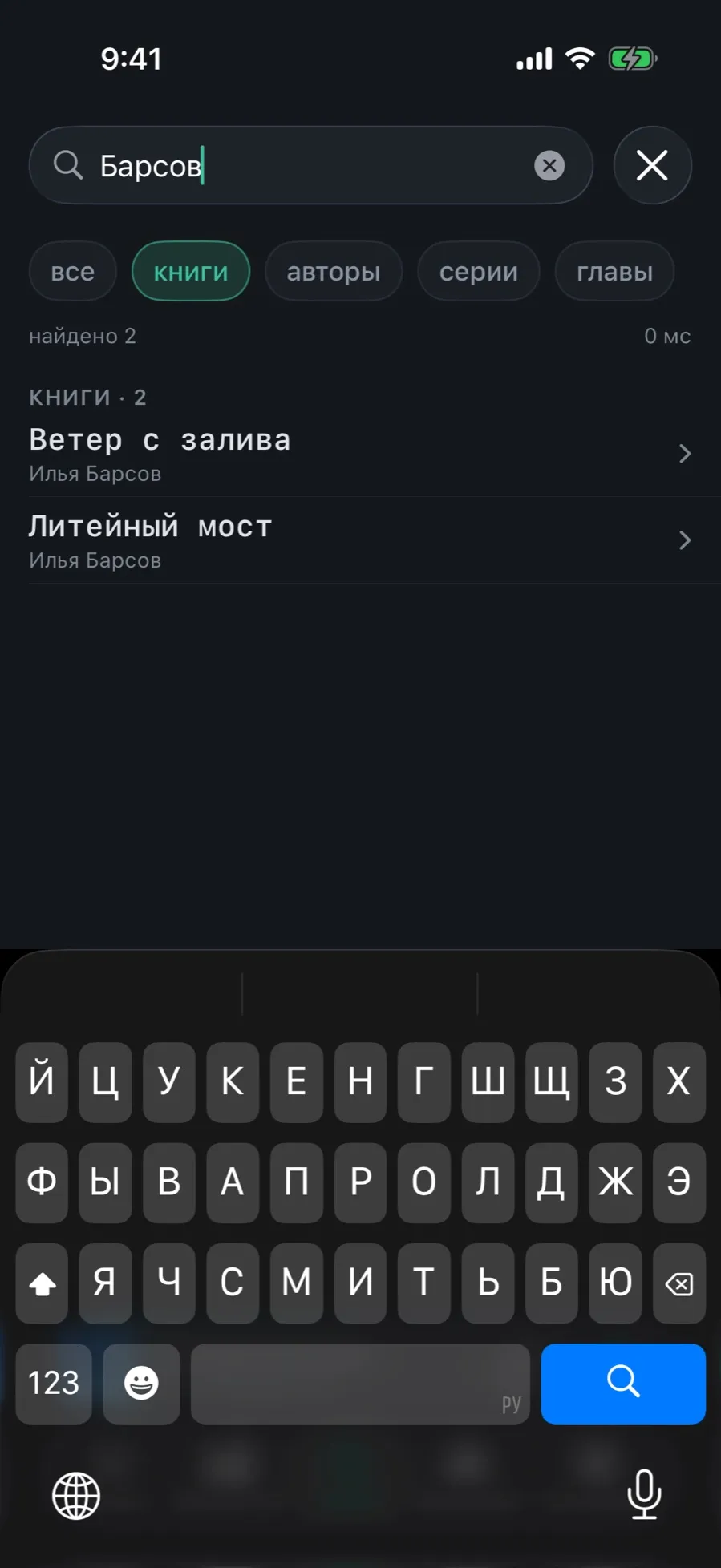
When you are after a book for certain, the other sections get in the way. The scope strip removes everything but the one you want.
Type the query.
Tap the scope you need in the strip below the field: “books”, “authors”, “series” or “chapters”.
The list rebuilds at once; the counter shows what is left.
To bring everything back, tap “all” — the first scope in the strip.
The “authors” scope covers narrators too, and “chapters” also covers bookmarks and their notes. Under “all” no more than five bookmarks are shown; the rest live under “chapters”.
05/06
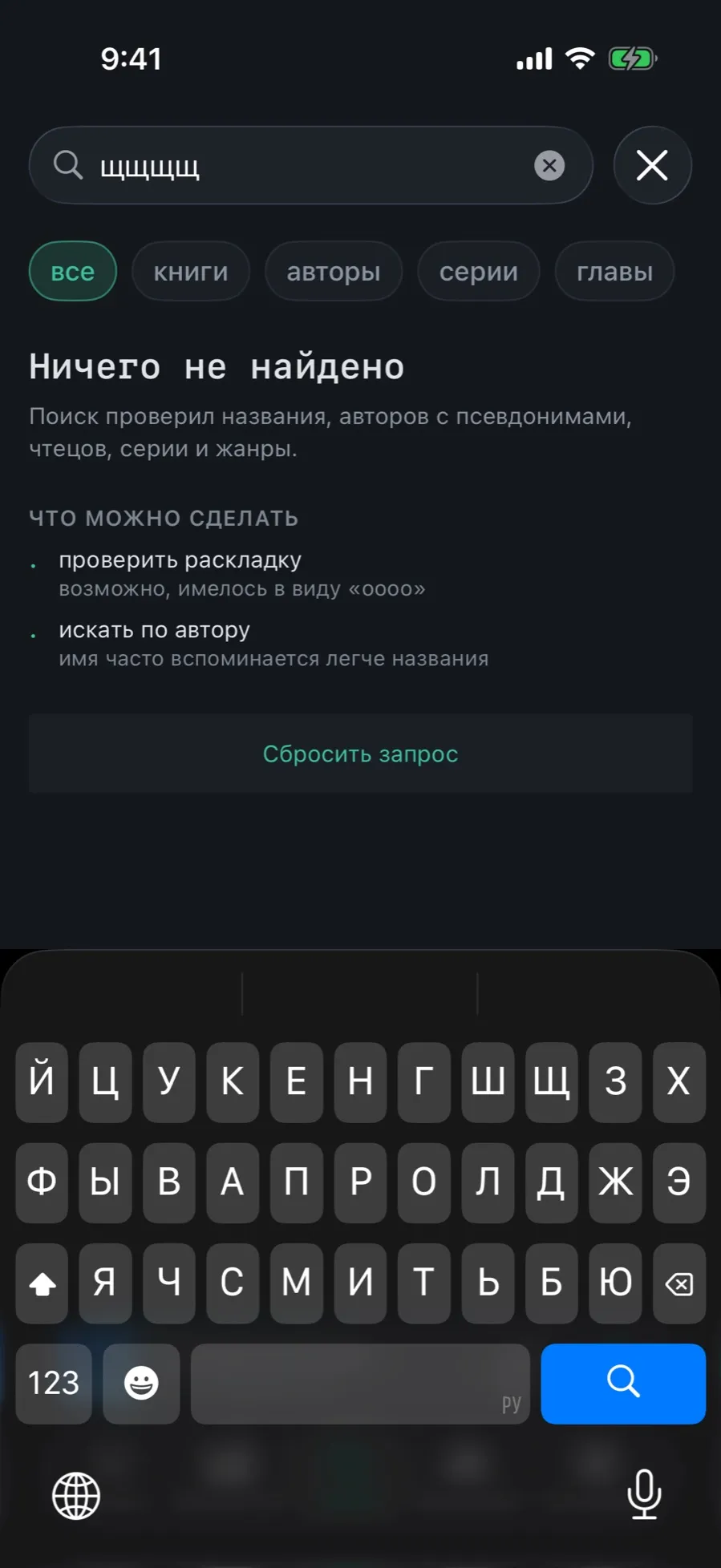
When nothing turns up
An empty result explains where it looked and offers a next step instead of leaving you with a blank screen.
The screen is titled “Nothing found” and lists what was checked: titles, authors with their aliases, narrators, series and genres.
The “What you can do” section offers “check the keyboard layout”, with the other reading spelled out, and “search by author”.
The “Clear the query” button empties the field without closing the screen.
When there are no exact matches but something is close, search fixes the typo and shows it.
06/06
Books in the phone-wide search
Books and authors reach the system Spotlight: pull down on the home screen, type the title and land straight in the card.
Nothing to switch on: indexing works from the first import.
A Spotlight result opens the book card or the author page, not just the app.
If you would rather books were not findable outside the app, open Settings → “Privacy” and turn off “Index in system search”.
Turning it off also removes what has already been indexed, not only what comes next.
Next to it sits “Hide the title on the lock screen”: the system player then shows “Audiobook” instead of the book title.
What search does not do
Full-text search inside books: it looks through titles, people, series, genres, chapters and bookmark notes, not the contents of your files.
Saving a query as a shelf: a shelf is built from library filters, not from the search field.
Searching the internet: the app goes online for neither books nor facts about them.