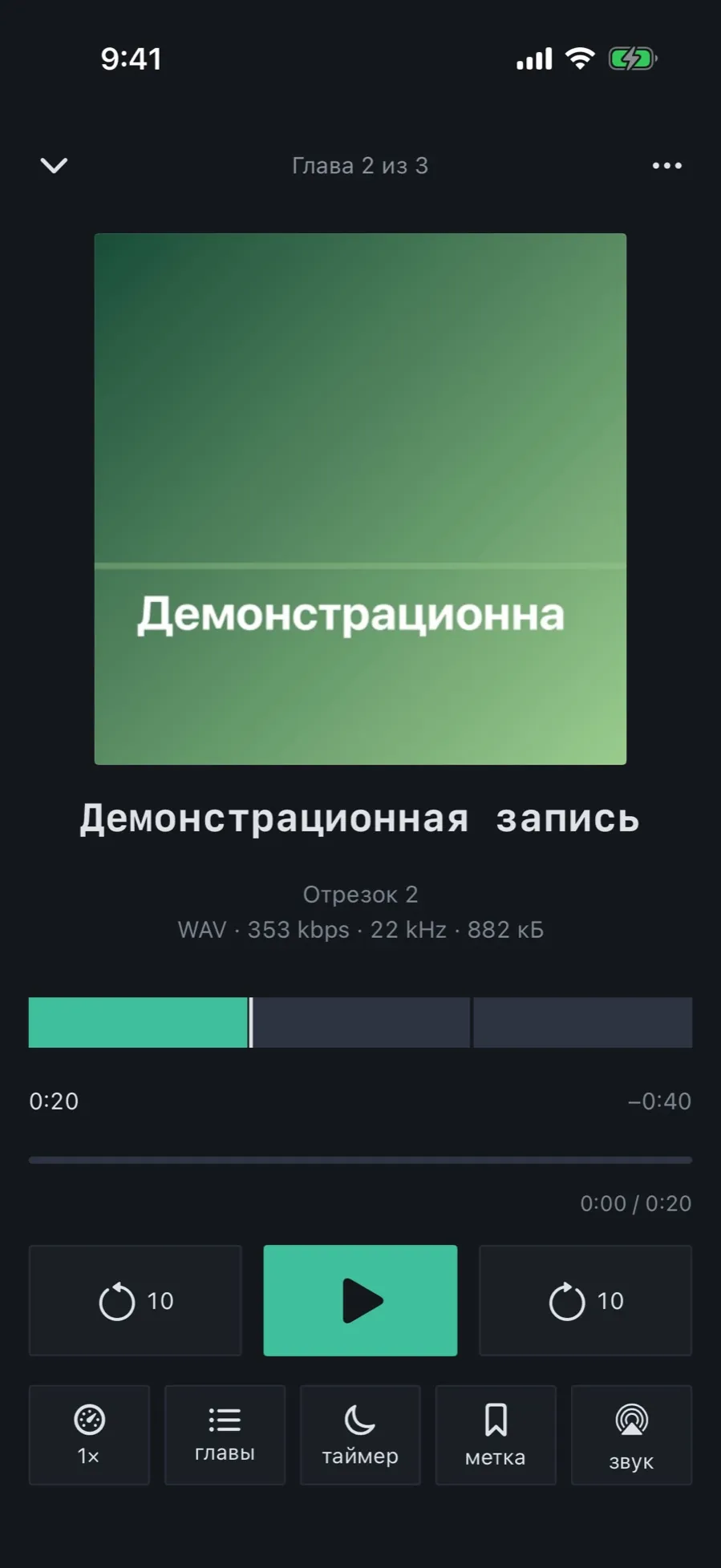
01/07Set a bookmark from the player
In the second row of player buttons, next to speed and the timer, there is “mark”. That is bookmarks.
- In the player tap “mark”, the button with the bookmark icon. The “Bookmarks” sheet opens.
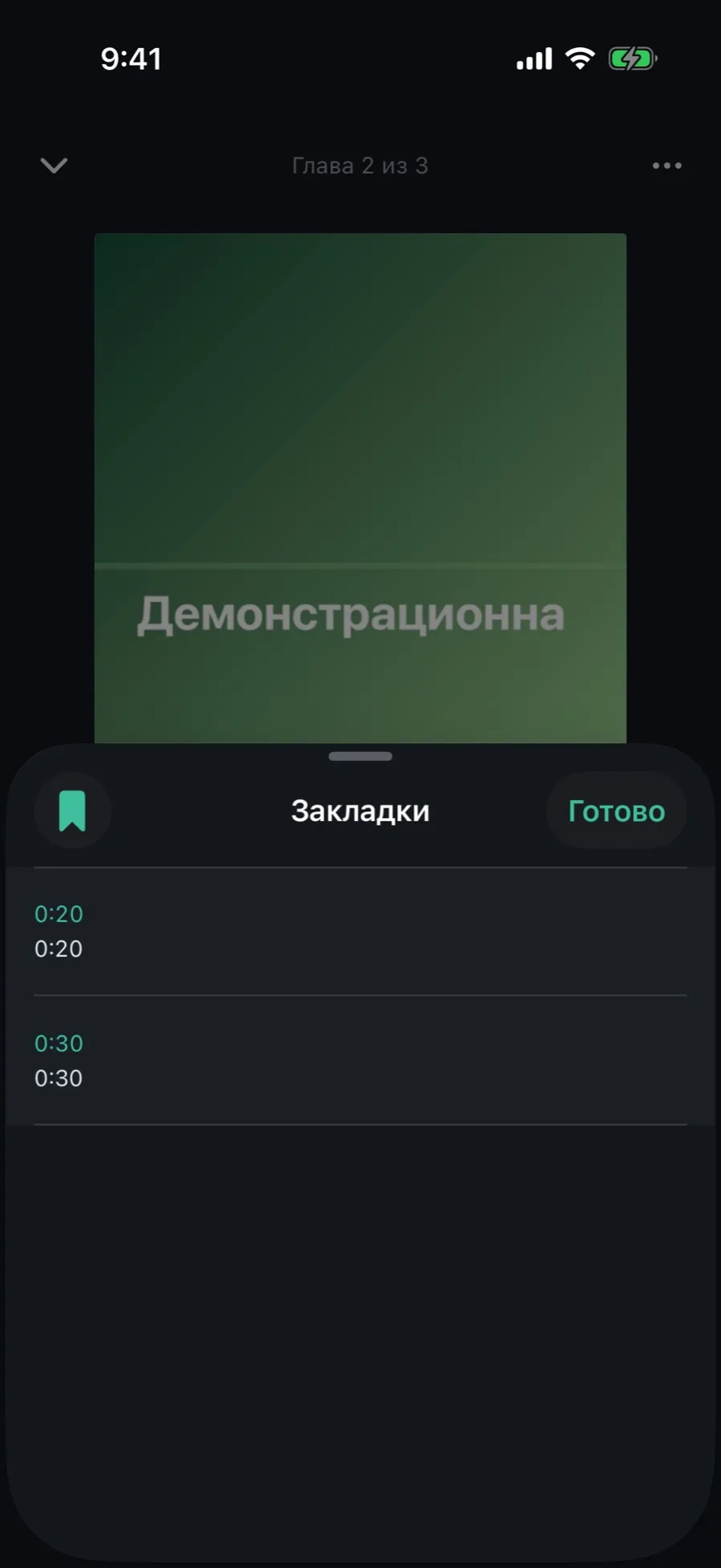
- Tap the bookmark button in the top left corner of the sheet; it is labelled “Add here”. The bookmark lands on the current second, with the time as its title.
- Tap “Done” to get back to the player. Playback is not interrupted.
In the Aura theme there is also a bookmark button on the Now tab, next to “Continue”: it sets a bookmark at the book’s current place without opening the player.
02/07Return to a bookmark
The bookmarks sheet in the player shows the time, title and note of each bookmark. A tap takes you there.
- In the player tap “mark”.
- Tap a bookmark row. The sheet closes and the player seeks to its place.
- Bookmarks are ordered by their place in the book, not by creation time: that makes the right chapter easier to find.
03/07Edit a bookmark: title, note, colour
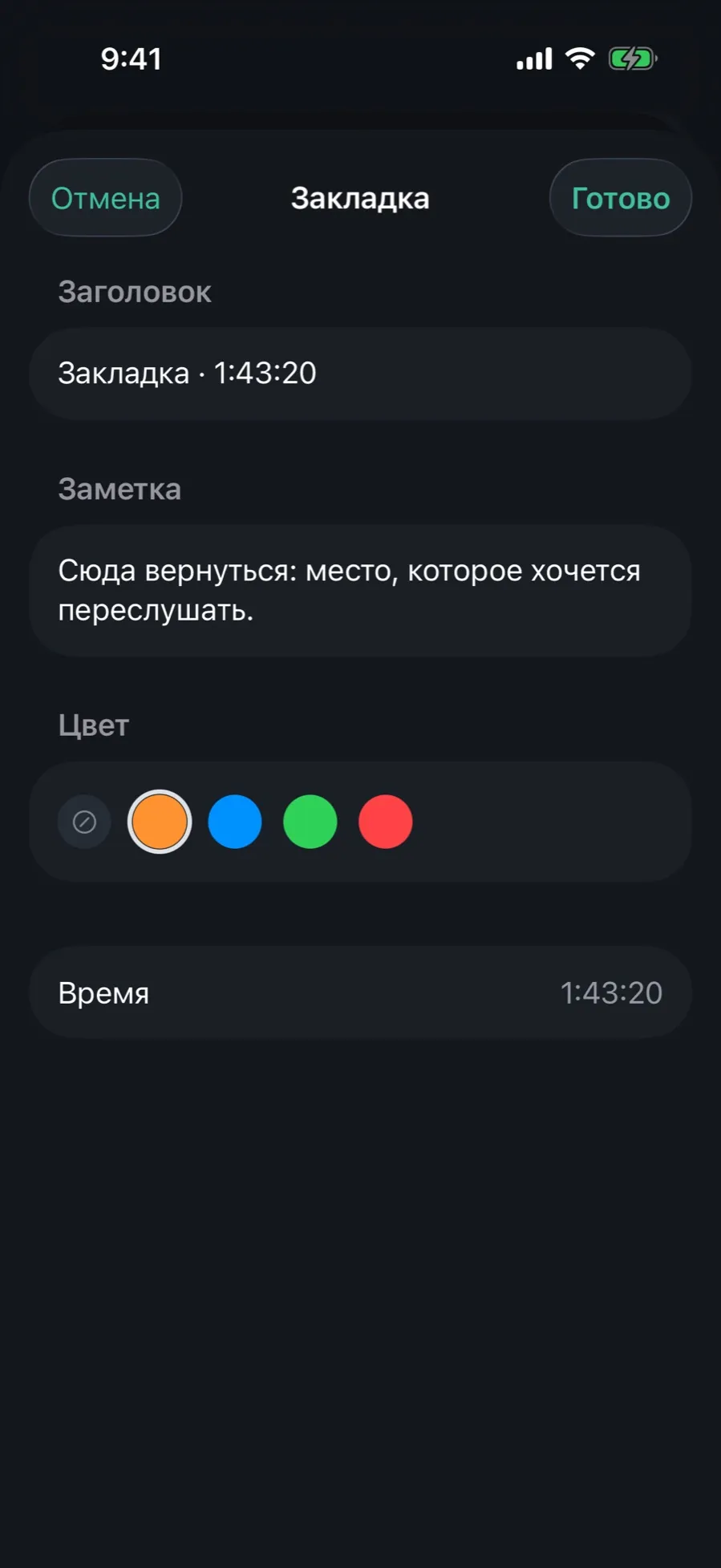
The time filled itself in; the meaning comes later: name the bookmark, write down the thought, mark it with a colour.
- In a bookmark list swipe a row to the right and tap “Edit”. Or touch and hold the row, then choose “Edit”.
- Fill in “Title” and “Note”. The note can run to several lines.
- Pick a “Colour”: no colour, orange, blue, green or red. The selected one has a ring around it.
- “Time” does not change: the bookmark stays where it was set.
- Tap “Done”. The edit shows everywhere this bookmark appears: in the player, in the book card, in the library-wide list and in search.
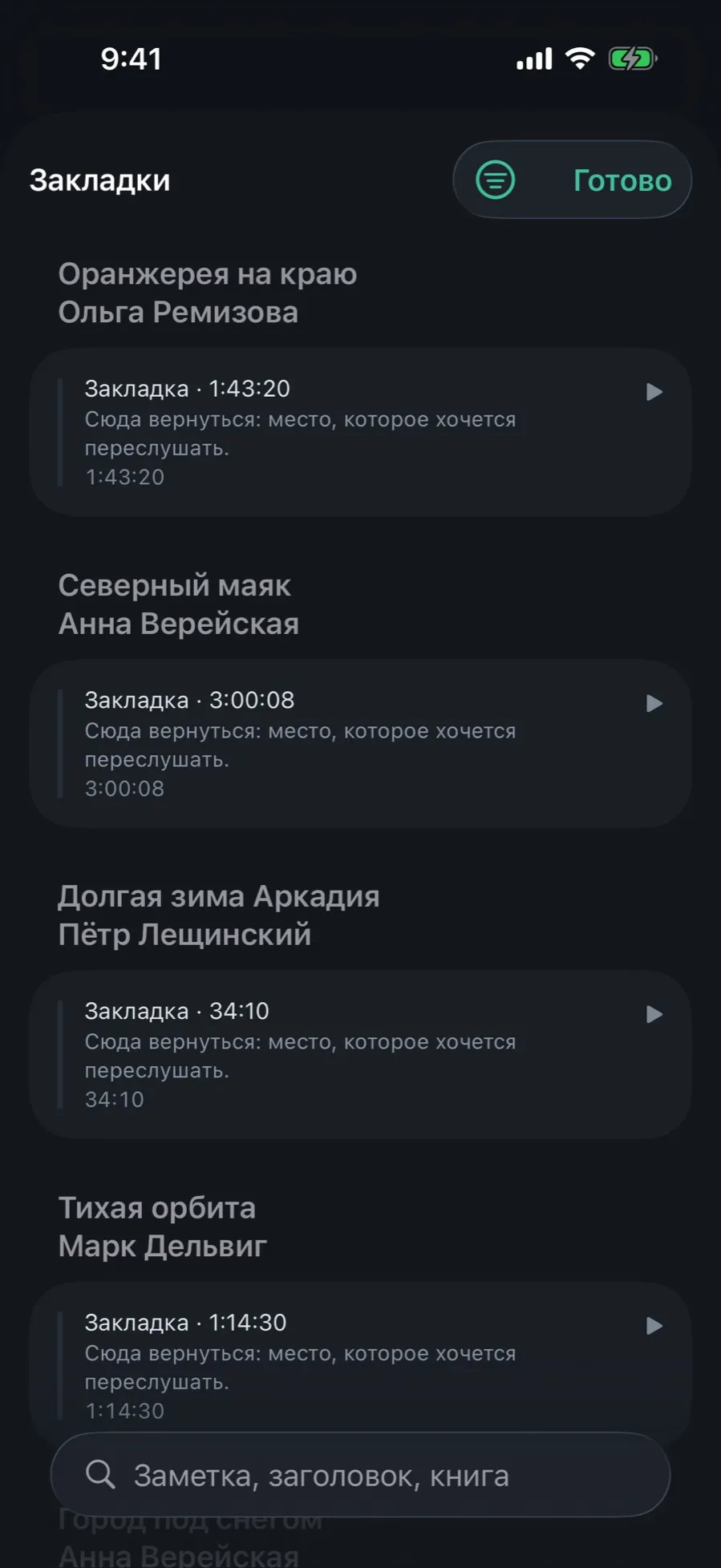
The colour shows as a stripe to the left of the bookmark in the library-wide list. The note is searchable from the Search tab.
04/07Delete a bookmark
Deleting works the same everywhere: in the player, in the book card and in the library-wide list.
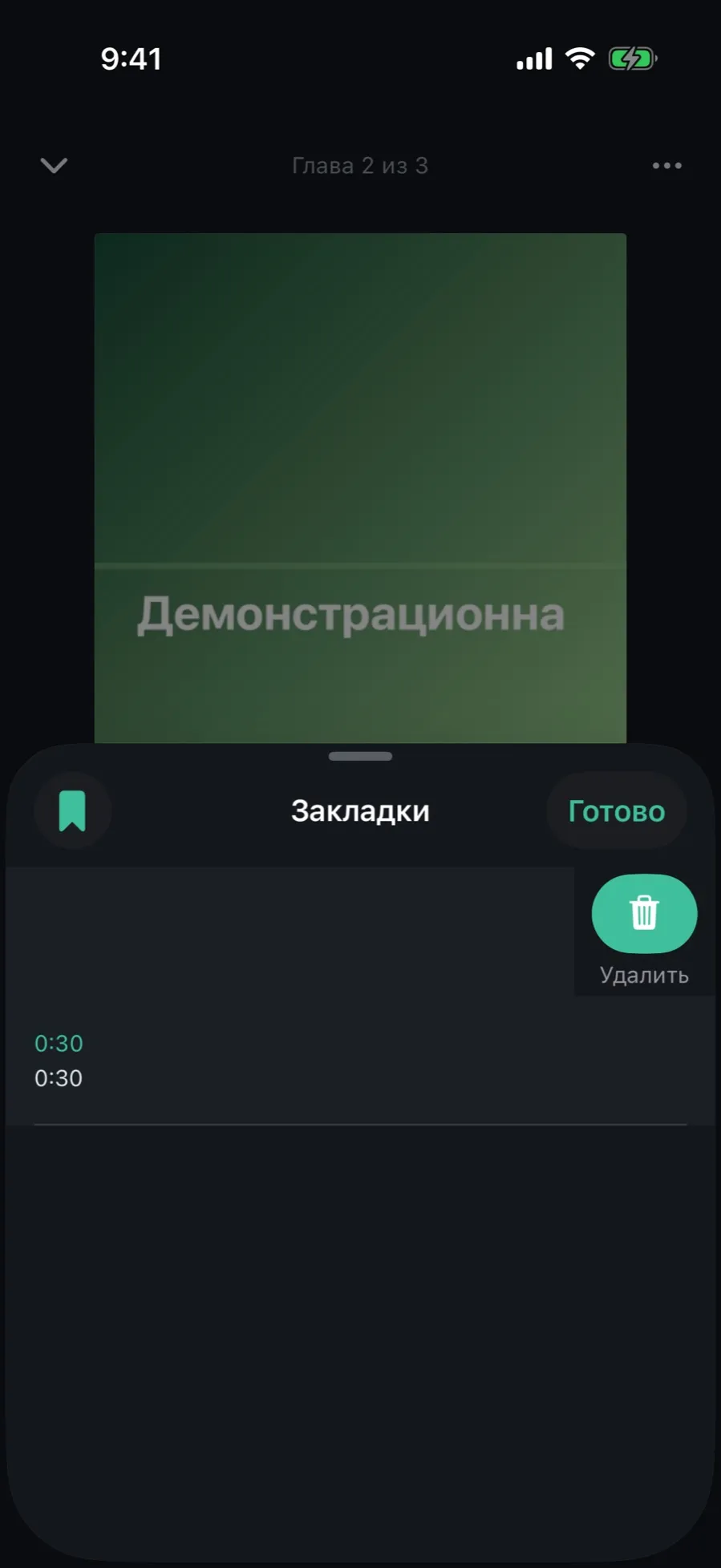
- Swipe a bookmark row to the left and tap “Delete”.
- Or touch and hold the row, then choose “Delete the bookmark”.
Deletion happens at once, with no confirmation. With sync on, the bookmark disappears from the other device too.
05/07Every bookmark in the library, in one list
Cannot remember which book the quote was in? The library-wide list gathers bookmarks from every book.
- On the Now tab tap the bookmark icon in the top right corner.
- Bookmarks are grouped by book; books with recent bookmarks come first.
- Search by note, title or book name in the “Note, title, book” field.
- Tap the filter icon and pick a book to keep only its bookmarks. “All books” clears the filter.
- Tap a row: the book opens in the player at the bookmark’s place.
06/07Find a bookmark with search
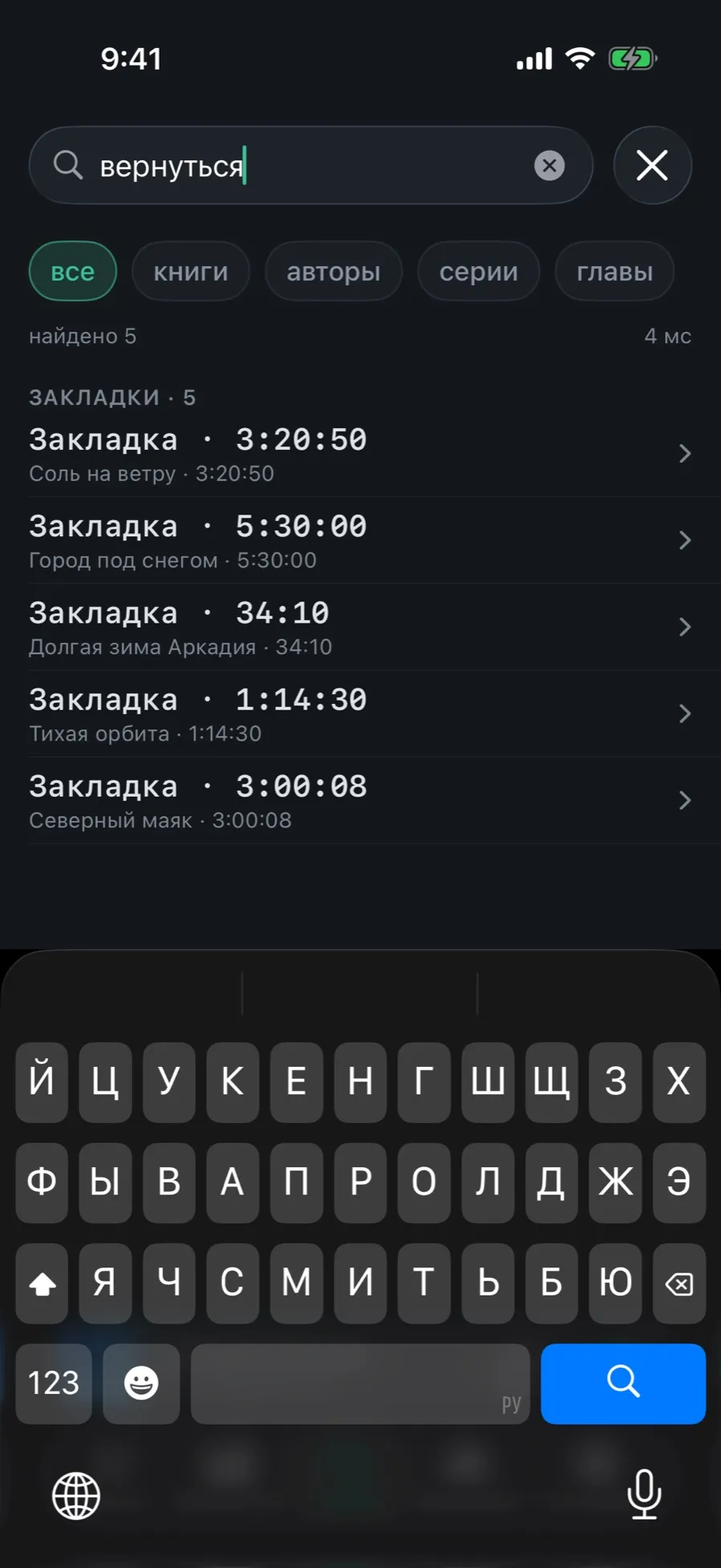
Bookmark notes are part of the general search, alongside books, authors and chapters.
- Open the Search tab and type a word from the bookmark’s note or title.
- A “Bookmarks” section appears in the results: title, book and time.
- Tap a result: the player opens at the bookmark’s place, not on the book card.
The “All” scope shows at most five bookmarks. Switch to the “Chapters” scope to see them all.
07/07A book’s bookmarks and their export
Every book has its own list of bookmarks in its card. From there the list can be sent as text.
- Open the book card and tap the “bookmarks” row. The number next to it shows how many there are.
- Tap a bookmark to listen from that place; swipe left to delete it.
- Tap “Share” in the top left corner: the list leaves as a Markdown file with the title, the author and the bookmarks in time order.
The file is named “Book title — bookmarks.md”. Bookmark notes go into it as separate lines.
What bookmarks do not do
- There is no bookmark button of its own in CarPlay, widgets or Siri commands.