Audiobooks eat memory faster than anything else. The Storage screen shows how much is taken and by what, and lets you clear the excess — but only after showing exactly what will go.
The screen itself, its figures, the integrity check and the image cache clearing are free. Offloading to your iCloud Drive, bulk operations and auto cleanup belong to Pro: without it the rows stay visible and explained, but do not fire.
Offloading is not deleting: the book stays in the library with its cover, progress and bookmarks; only the files leave. A local file is never deleted until the cloud has confirmed the copy — that is a rule, not a setting.
01/05
What is taking up space
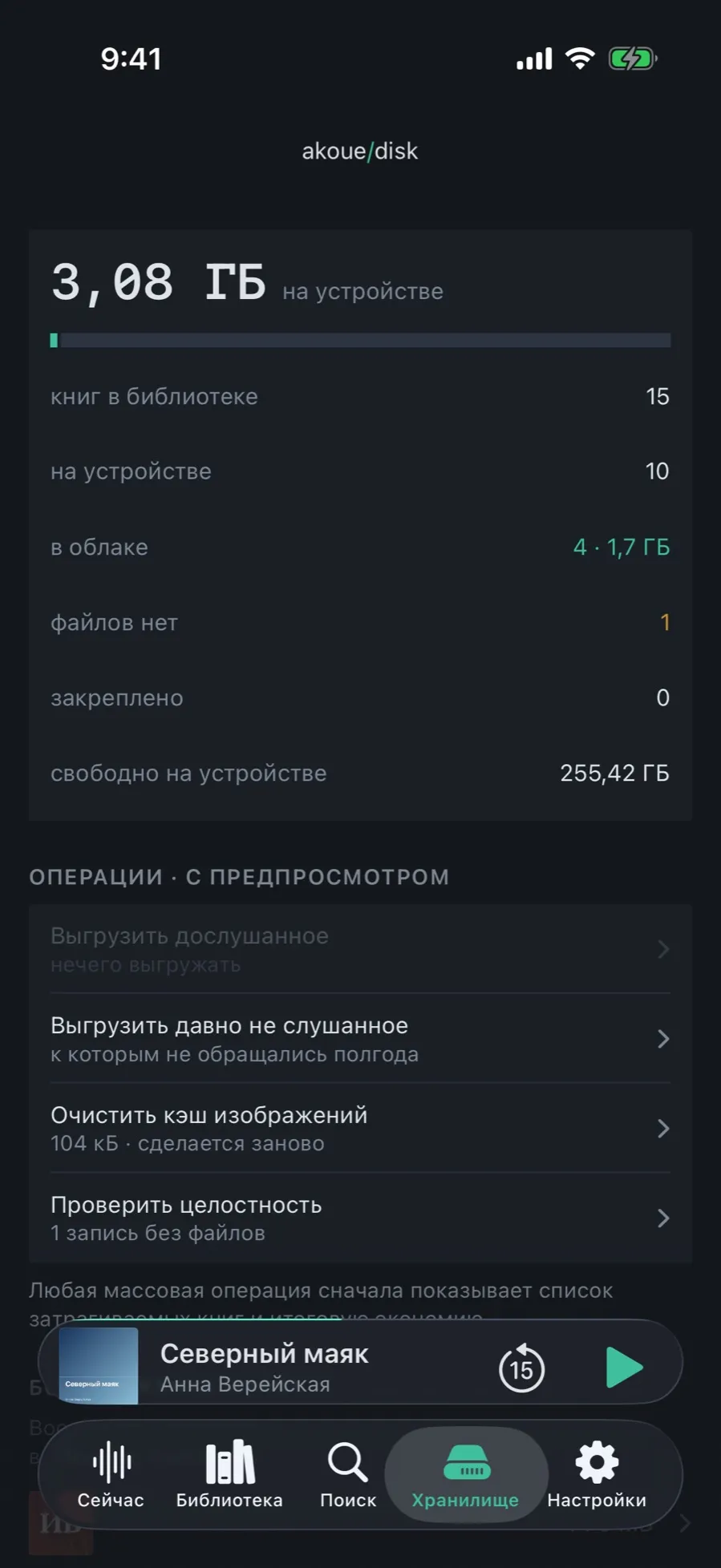
At the top: how much is taken on the device, and straight away the breakdown of where the books are.
Open the “Storage” tab.
The big figure is what the books take on the device; the bar beside it shows the share of total memory.
Below, the breakdown: how many books are in the library, how many on the device, how many in iCloud and at what size.
A yellow “no files” row means records whose files have gone missing: “Check integrity” will sort them out.
“Kept on device” counts the books shielded from auto cleanup.
02/05
Four operations
Every row says what it will do and what it will give before you tap it. Nothing to do — the row dims and explains why.
“Offload finished books” — the files go to iCloud, the progress and the edits stay here.
“Offload books not played for a while” — the same, but the choice is made by the auto-cleanup rules: age and time since last opened.
“Clear image cache” — only the scaled-down copies of covers go; the originals stay.
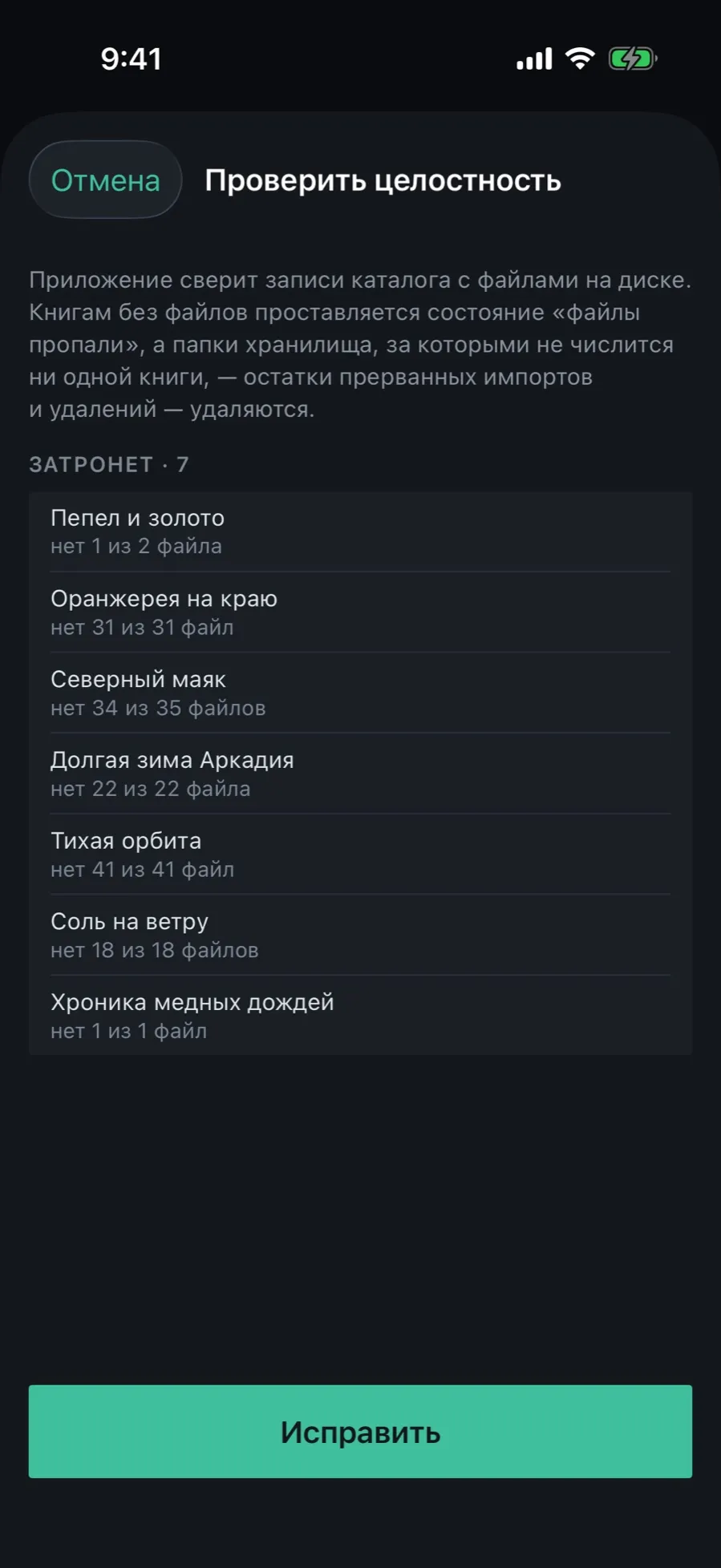
“Check integrity” — the app matches the catalog against the files on disk and clears the leftovers of interrupted imports.
Offloading can be limited to Wi‑Fi with a switch in the settings. On cellular the queue waits for a network.
03/05
A preview instead of trust
Every bulk operation first shows the books it will touch and the space it will free. You agree to a specific list, not to a promise.
Tap any operation.
A sheet opens with the list of books it will touch.
At the bottom: how much space will be freed.
Confirm or close the sheet: nothing changes until you confirm.
Books with no copy in the cloud are left out of offloading: they cannot be removed from the device because the copy exists nowhere else. The app says so right in the sheet.
04/05
Auto cleanup by rules
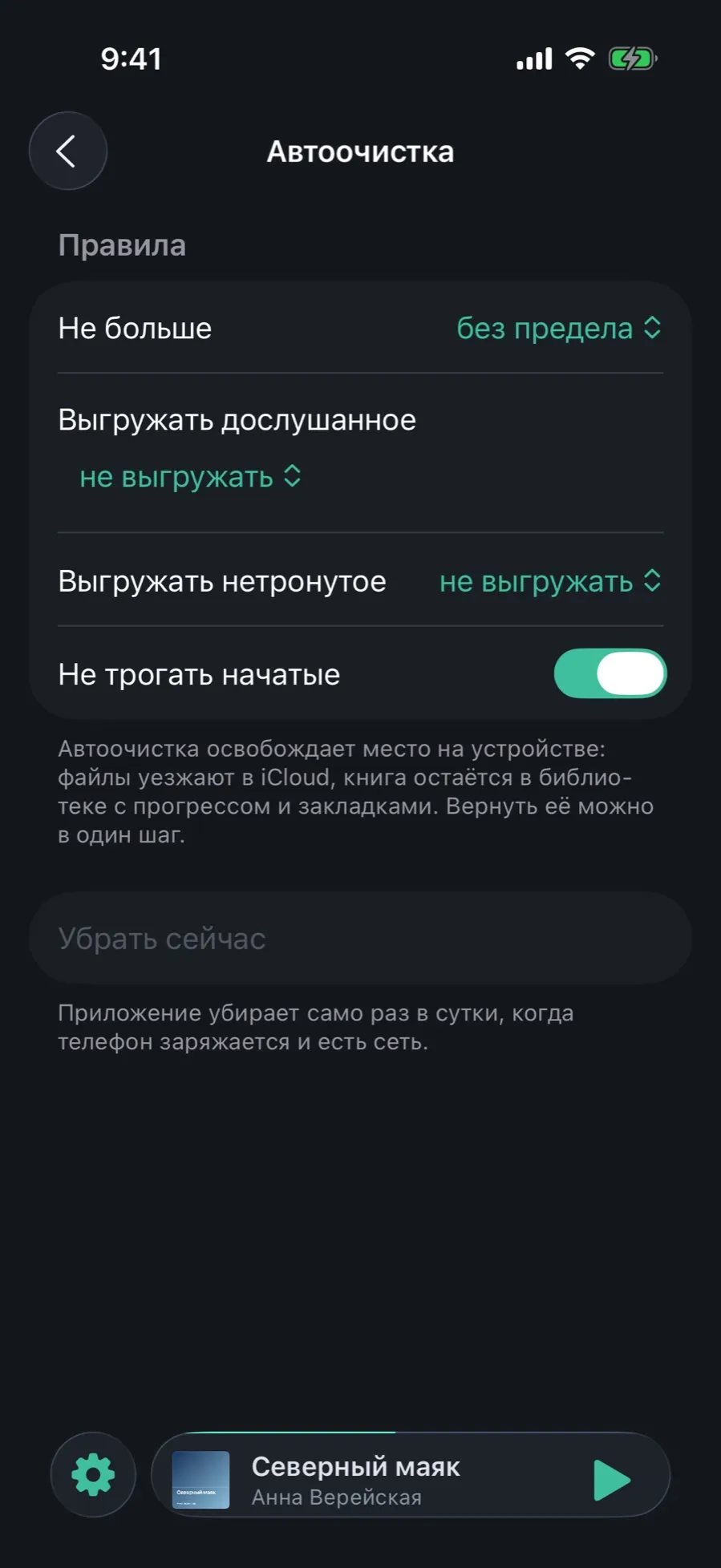
So you do not have to come here every month, the rules can be set once. Auto cleanup is off by default: offloading spends your iCloud quota, and spending it silently is not on.
Open Settings → “Auto cleanup”.
“No more than” — the size limit on the device: from 5 to 100 GB, or “no limit”.
“Offload finished books” — how many days after the book ended.
“Offload untouched books” — how many days without being opened.
“Leave started books alone” shields the books you are listening to right now.
The “Tidy up now” button applies the rules at once; normally the app tidies up once a day, while your phone is charging and online.
A single book is shielded from auto cleanup with “Keep on device” — in the book’s menu in the library.
05/05
What ate the memory
When you would rather clean up by hand, the list of the largest books answers “where do I start”.
Scroll the Storage screen down to “Taking the most space”.
The eight largest books on the device; the ones offloaded to iCloud do not count.
Tap a book to open its card and decide what to do with it.
What storage does not do
Other clouds: offloading goes only to your iCloud Drive, with no WebDAV and no home servers.
Offloading books added by reference: their files are not the app’s to move in the first place.
Deleting files with no copy: if there is no cloud copy, the app will not touch the local file.