The app does not begin with an empty list but with three screens that explain what it does to your files. You can skip them, but they are short and answer the main questions at once.
The welcome is shown once. It asks for no permissions: neither notifications nor access to your photo library — all of that is asked at the moment it is really needed.
An empty library is a normal first-day state. The app does not download books; it brings order to the ones you already have.
01/04
What the app does to a folder
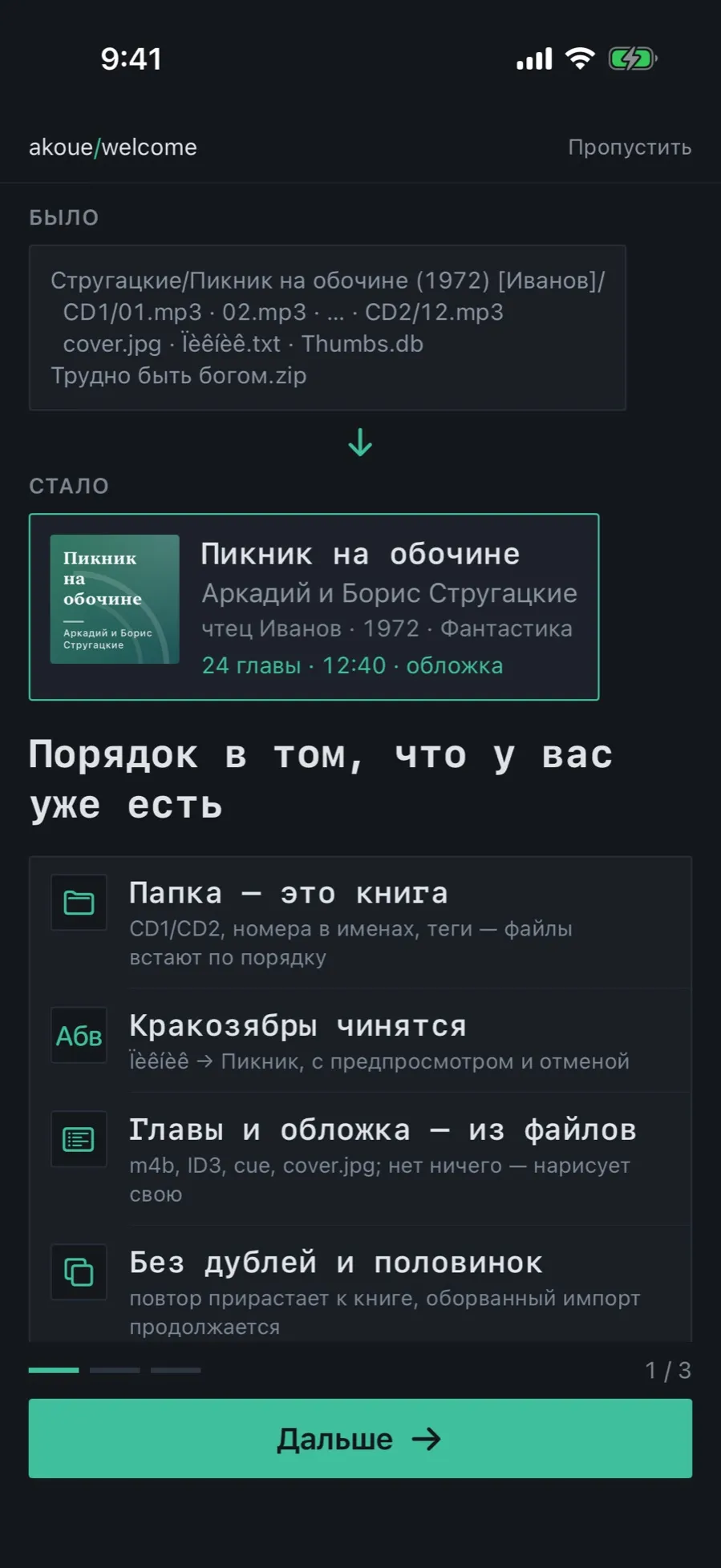
The first screen answers “why do I need this” with one example: before, a heap of files; after, a book.
At the top, a real case: a folder with files split across discs, a cover and junk like Thumbs.db.
Below it, what comes out: the title, the authors, the narrator, the year, the genre, the chapter count and the length.
Four lines explain the mechanics: a folder is a book, garbled names get repaired, chapters and the cover come from the files, a repeat import breeds no duplicates.
Tap “Next” or “Skip” in the top right corner.
02/04
Why this beats a music player
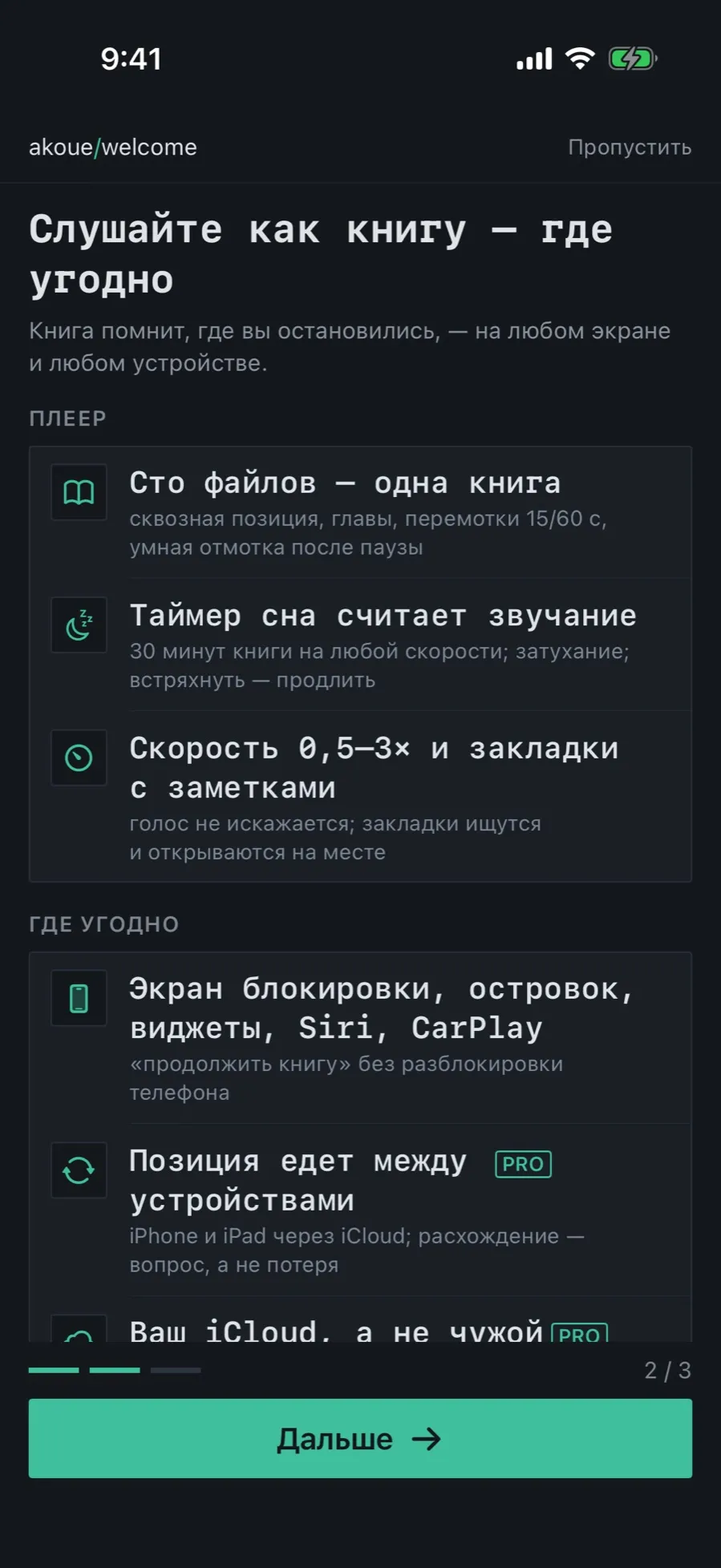
The second screen is about what happens after the import: how the book sounds and where it can be controlled.
The “Player” section: a hundred files as one book, a sleep timer counting playback, speed 0.5–3× and bookmarks with notes.
The “Anywhere” section: the lock screen, the island, widgets, Siri and CarPlay.
A PRO badge sits where the feature is paid: syncing across devices and storage in your iCloud.
Tap “Next”.
Everything you need to listen to books is free and unlimited. Pro is for when the collection does not fit the phone or you have more than one device.
03/04
Bring the first book
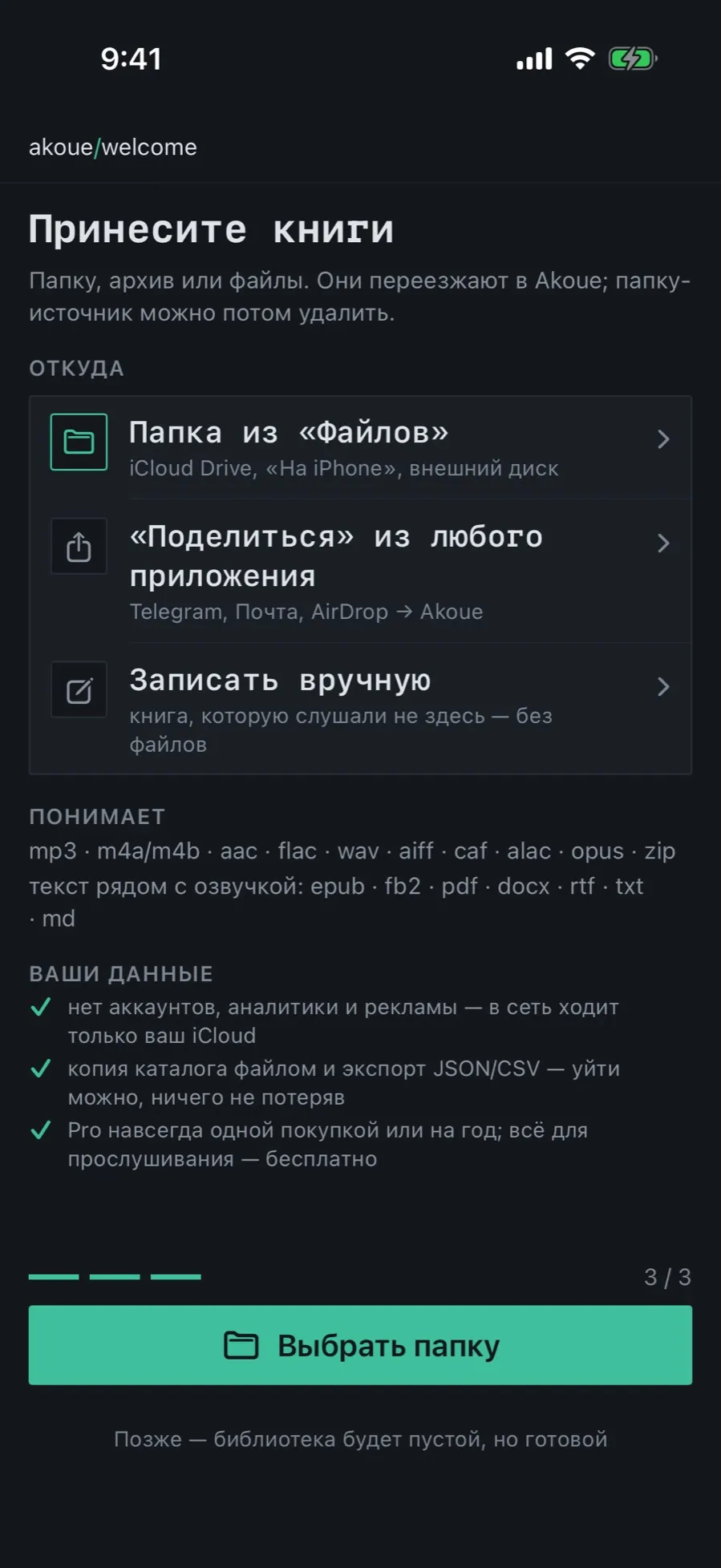
The third screen is the working one: the import starts here. It also says which formats the app understands and what happens to your data.
The “From where” section offers three paths: a folder from Files, Share from any app, and writing a book down by hand with no files at all.
The “Understands” section lists the formats: mp3, m4a/m4b, aac, flac, wav, aiff, caf, alac, opus, zip, and text alongside the narration.
The “Your data” section holds three promises: no accounts and no analytics, the catalog leaves as a file, Pro for good or for a year.
Tap “Choose a folder” to start right away, or “Later” — the library will be empty but ready.
04/04
Where every following day starts
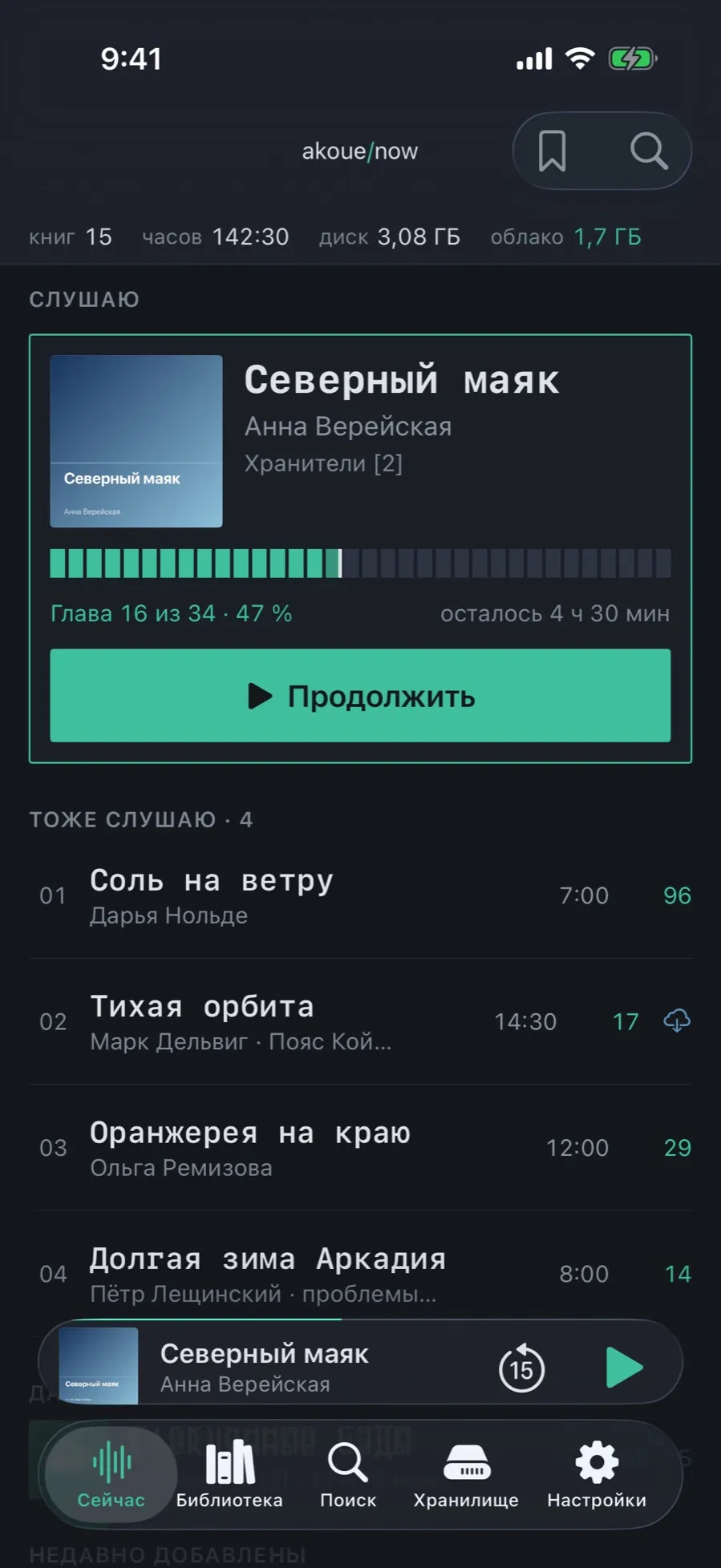
The Now tab is neither a shop window nor a set of recommendations. It has one job: to put you back into the book in one tap.
At the top, the library’s status line: how many books, how many hours, how much is taken on the device and in the cloud.
The main block is the book in progress: cover, author, series, chapter map and the “Continue” button.
Below it, “Also listening”: the other books you have started.
Further down, “Up next” — the next volume of a series — and “Recently added”.
With no book in progress the screen does not go blank and is not swapped for another section: it offers where to begin.
What the start does not have
A demo book: the app puts nothing of its own on your device; the library begins with your files.
A request to create an account: there is none and there will be none.
Permissions asked in advance: notifications, Siri and photo access are asked at the first real need.