01/08Save a filter as a shelf
Any set of library filters becomes a shelf in two taps. That is how “Listening”, “Not started” and “On device” come to be.
- Open the Library, tap the filter icon in the top right corner and choose “Filters…”.
- Tick the conditions, for example the status “listening”, and tap “Show”.
- A bookmark button, “Save as a shelf”, appears next to the filter chips. Tap it.
- Name the shelf, pick a badge and check the line “N books match right now”: an empty shelf is visible before saving, not after.
- Tap “Save”. The shelf takes its place in the strip above the list.
The bookmark button shows only while a filter is active: a shelf without conditions would mean “the whole library”, and that is already open.
02/08Open a shelf and get back to all books
Shelves are not a separate screen but a strip above the list: the answer belongs where the books are.
- In the Library, tap a shelf chip in the strip above the list. The list is rebuilt to its condition.
- To go back, tap “All”, the first chip in the strip, or the same shelf once more.
- Sorting is stored with the shelf: open it a month later and the order is the same.
The strip appears together with the first shelf. While there are no shelves, there is nothing above the list.
03/08Add a book to a shelf from its card
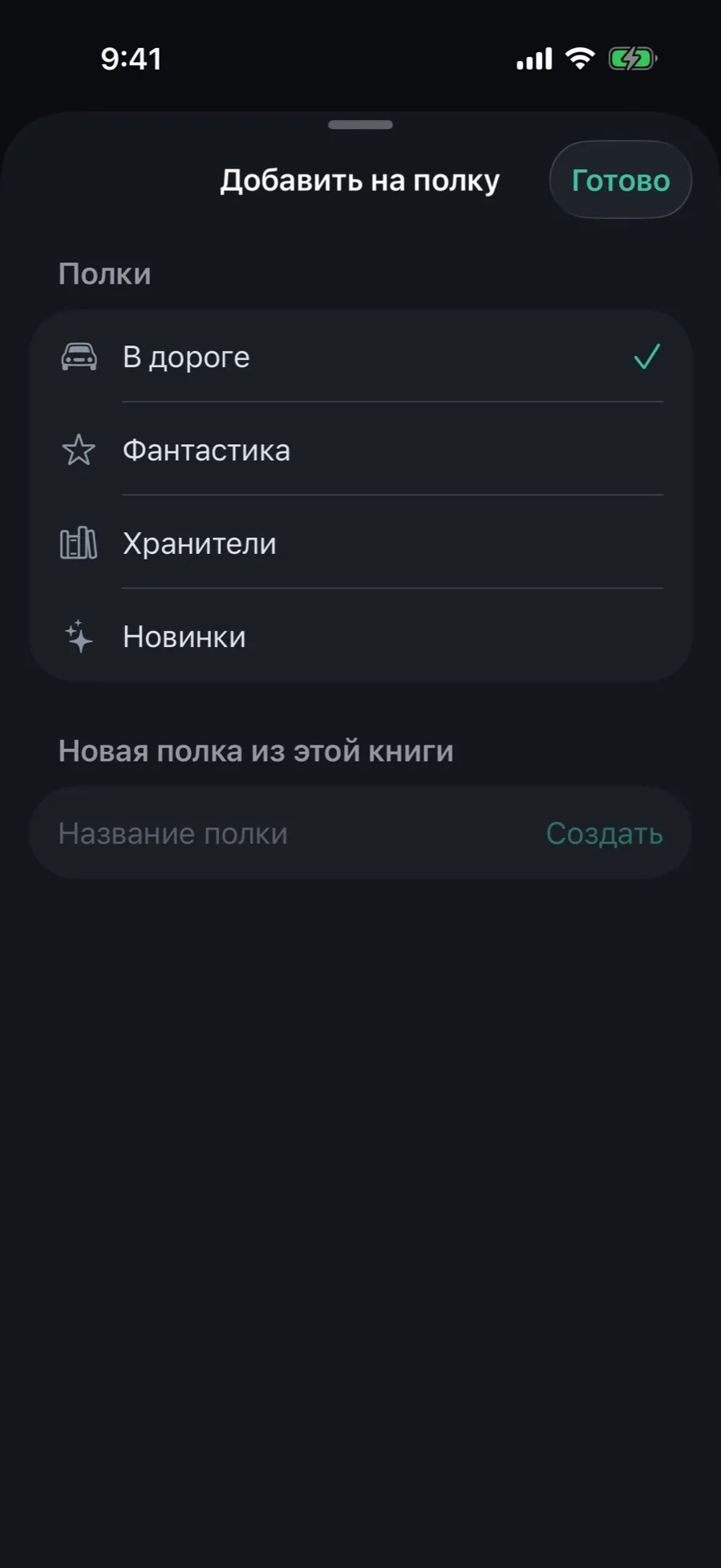
Sometimes no condition fits, but the book belongs on the shelf. Pin it by hand: it stays there regardless of the other conditions.
- Open the book card and tap “⋯” in the top right corner.
- Choose “Add to shelf”.
- Tap a shelf in the list and a checkmark appears. Tapping again takes the book off the shelf.
- No suitable shelf? Type a name into the “New shelf from this book” field and tap “Create”.
A pinned book goes into its own condition group, so it stays on the shelf even when it fails the other conditions.
04/08What a condition is made of
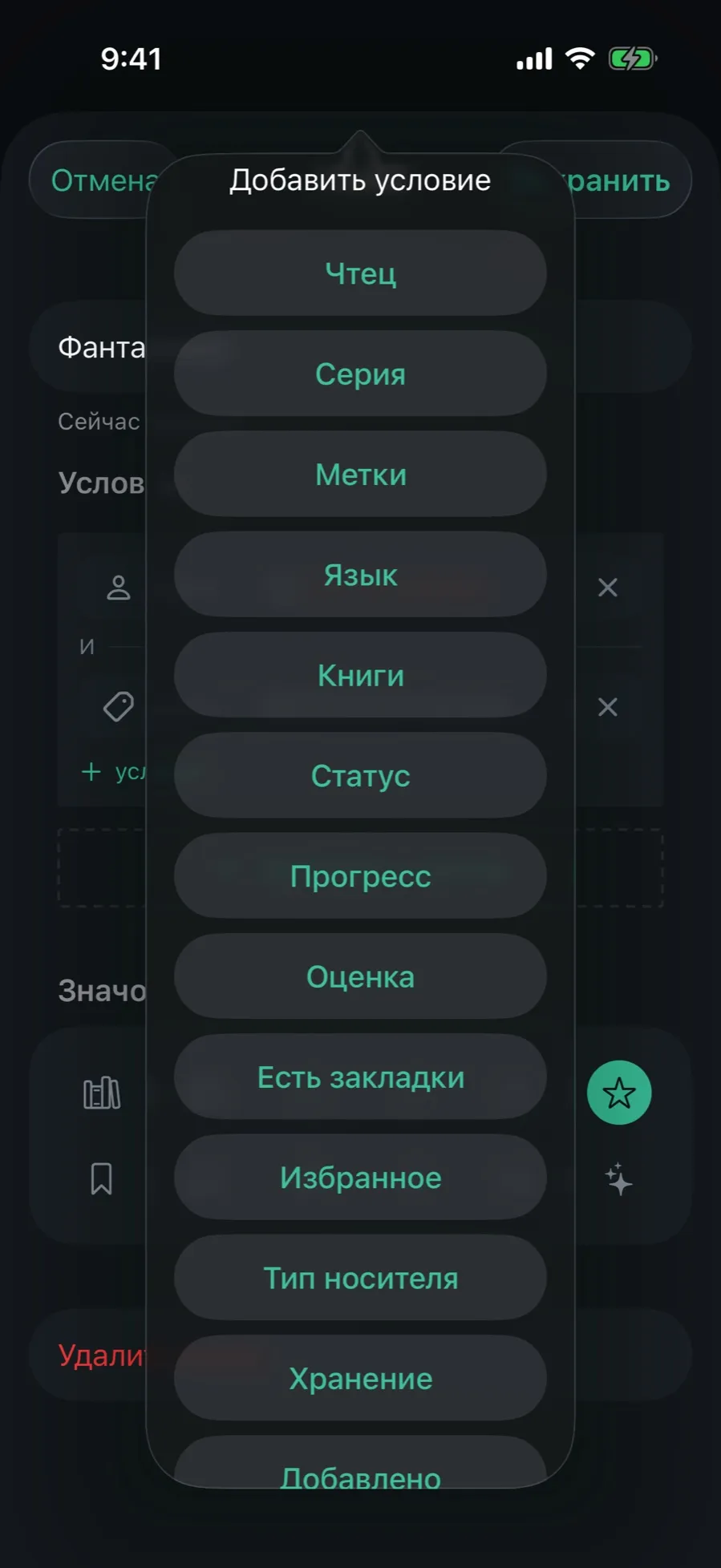
Seventeen kinds of conditions, from author and series to “has bookmarks” and duration.
- Open a shelf for editing and tap “+ condition” in the Condition section.
- Catalog: author, narrator, genre, series, tags, language, books. Pick several values at once.
- Status: status, progress, rating, favorites, has bookmarks.
- Media: media type, audio or text, and storage, on device or in iCloud.
- Time and numbers: added, played, duration.
A condition can be flipped: in the list of authors, genres or series tap a row a second time and you get “not Remizova”. Exclusions are highlighted in red.
05/08Build a complex shelf: groups, AND and OR
One filter cannot express “all science fiction except one author, plus everything untouched for a month”. A shelf can: inside a group conditions narrow (AND), between groups they combine (OR).
- Open a shelf for editing. The first group is already there: it is your filter.
- Add conditions to it with “+ condition”. They are joined with AND: a book has to match all of them.
- Tap “Add group”. An OR appears between the groups: matching any one of them is enough.
- Watch the line “N books match right now”; it is recalculated on every change.
- The trash icon in a group header removes the group, the cross in a row removes the condition.
06/08Shelves by time: “not opened in a month”
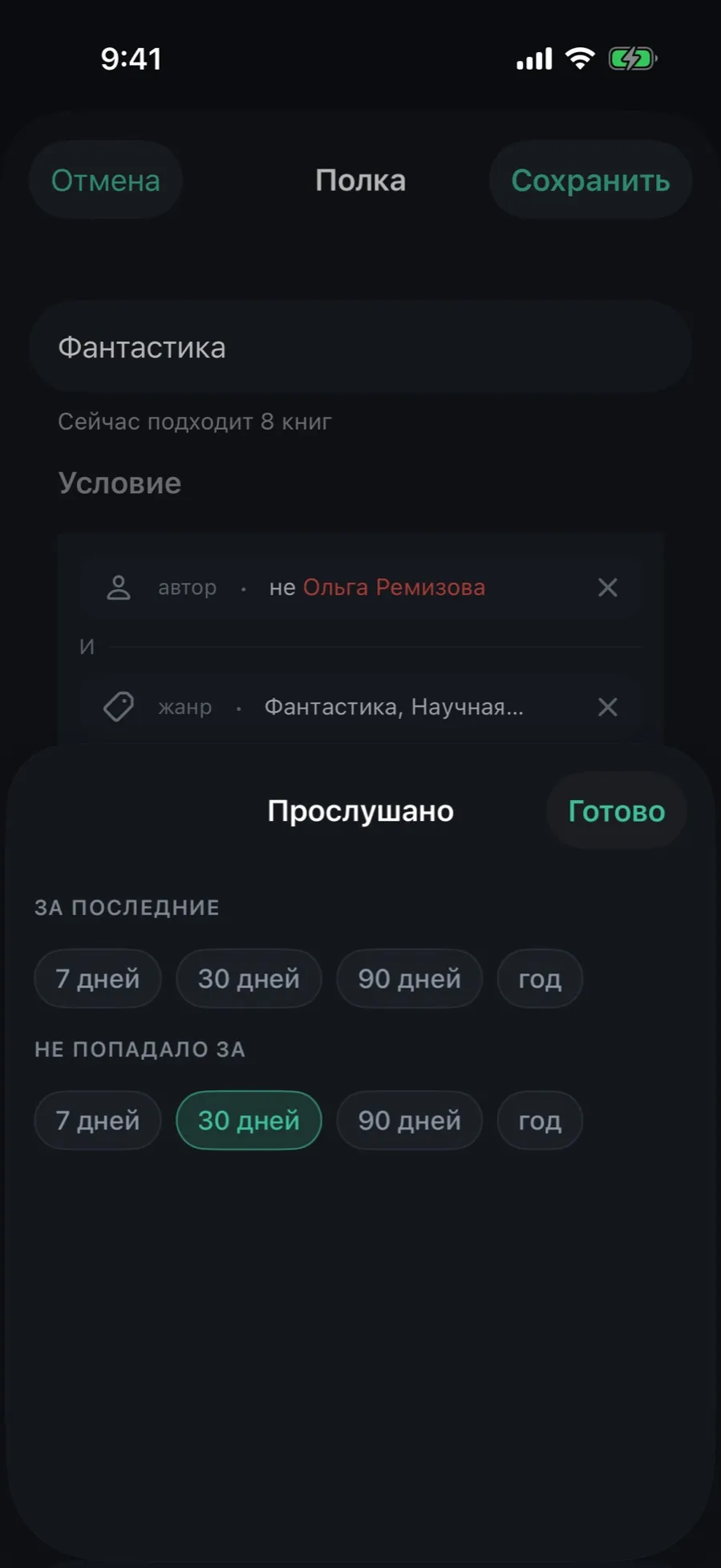
A shelf stores an intent, not a date: “in the last 30 days” still means the last thirty days half a year later, not “since August 17”.
- Add the “Added” or “Played” condition.
- “In the last” is what appeared or played recently: 7, 30, 90 days or a year.
- “Not opened in the last” is what you never get around to: books not opened for the whole period. Available for “Played” only.
- Tap “Done”. The period is recalculated every time the shelf is opened.
Dates picked by hand in the filters are saved into the shelf as they are, as an explicit range. The app will not guess whether you meant “the last week”.
07/08Arrange the shelves your way
The shelves you open every day go first. The app has no opinion about importance: the order is yours.
- Touch and hold any shelf chip in the strip.
- Choose “Shelf order”. A list of shelves with handles on the right opens.
- Drag the shelves by their handles into the order you want and tap “Done”. The strip rearranges at once.
The item appears once there are at least two shelves. The “All” chip always stays first: it is the way back to the whole library.
08/08Rename, change the badge, delete
Everything is in one editor, the same one the shelf was created in.
- Touch and hold a shelf chip in the strip; a menu opens.
- Choose “Edit”.
- Fix the name, the condition or the badge and tap “Save”.
- The “Delete shelf” button is at the bottom of the editor. The books stay where they are: only the condition is deleted.
Deletion happens at once, with no confirmation. A shelf whose condition comes from a newer version of the app is shown in the strip with a question mark: it cannot be opened or edited, so the condition is not overwritten.
What shelves do not do
- Shelves are not in CarPlay, widgets or the Now tab, only in the Library.
- A search query cannot be saved as a shelf.