Everything the app guessed during import can be corrected by hand — and no edit ever touches the files on disk. The original tags are kept separately, so you can always go back to what the file said.
Editing works on two levels: the book has its own fields — title, author, series, genres — and every edition has its own: the edition title and the narrator. That way two narrations of one book get different narrators without turning into two different books.
Editing is free and unlimited. With Pro sync, edits travel between iPhone and iPad along with progress and bookmarks.
01/04
Open the editor
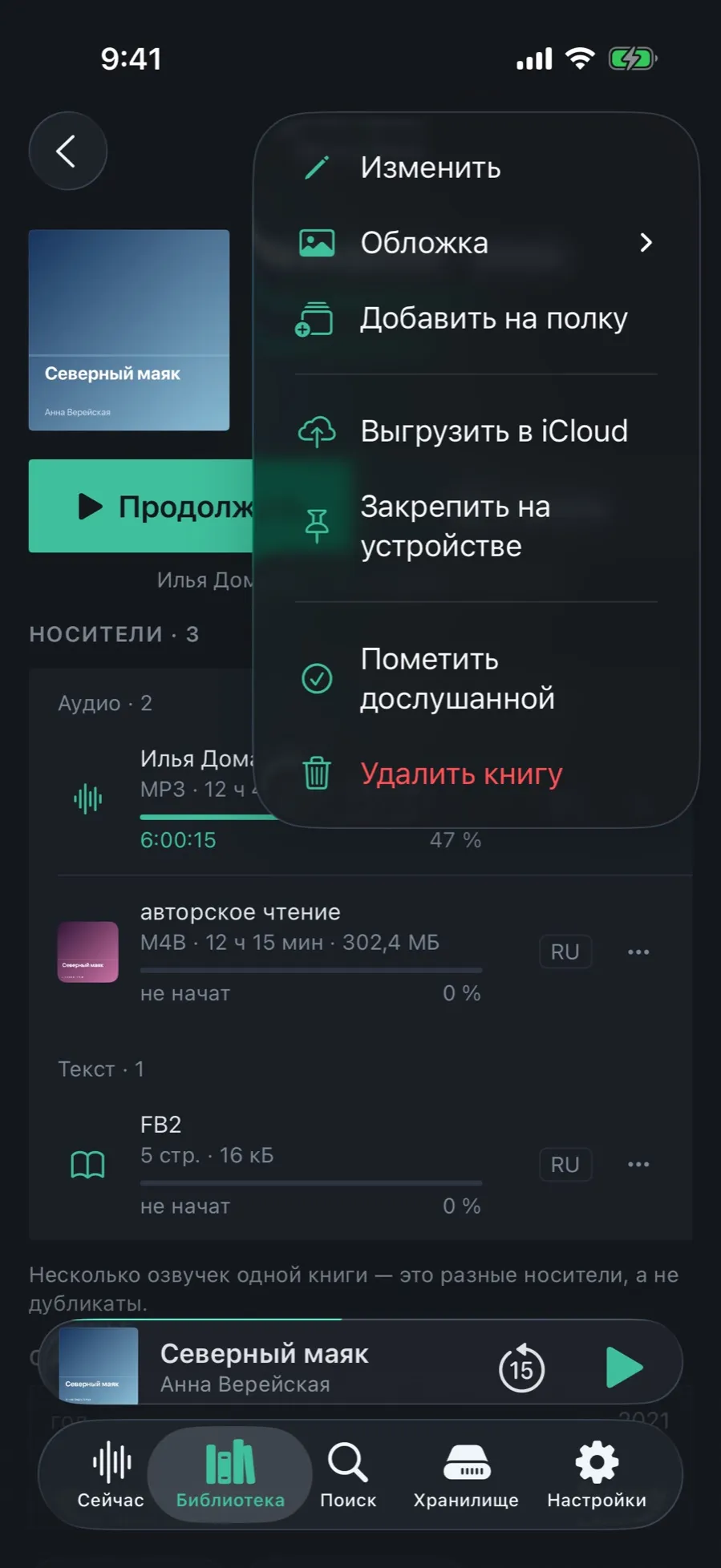
Everything you can do to a book sits in one menu in the top right corner of its card.
Open the book card and tap “•••” in the top right corner.
Choose “Edit” — the “Metadata” screen opens.
The same menu also holds “Cover” with its own submenu, “Add to shelf”, “Offload to iCloud”, “Keep on device”, “Mark as finished” and “Delete the book”.
The same menu is on a book row in the library, on a long press, without going into the card at all.
02/04
Book fields and edition fields
At the top, what belongs to the work. Below, a block per edition: its own caption and its own narrator.
The “Book” section holds “Title”, “Subtitle” and “Author”. Several authors are separated with commas.
Below comes a section per edition: “Audio”, “Audio” again, “Text”.
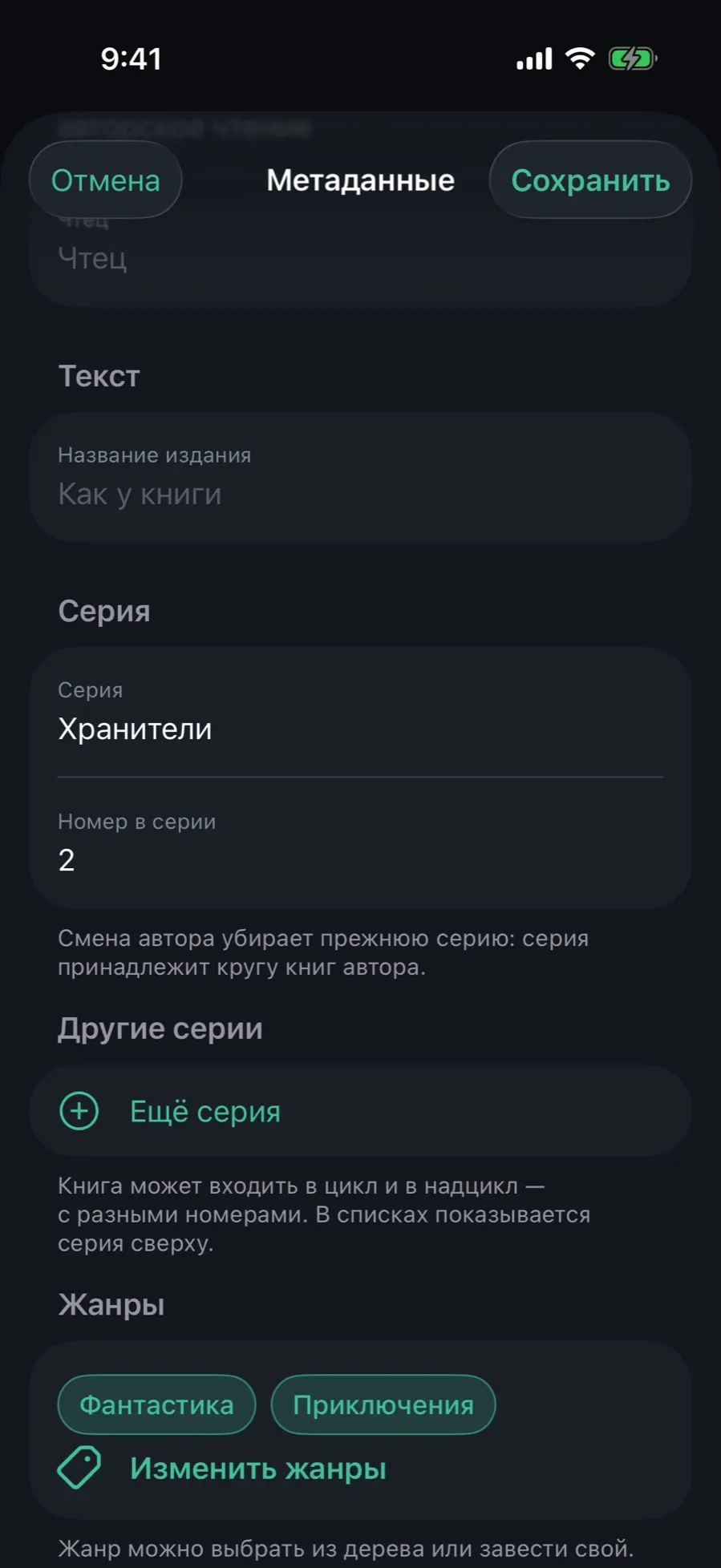
An edition has two fields: “Edition title” — empty means “Same as the book” — and “Narrator”.
Tap “Save”. “Cancel” closes the screen without touching anything.
The narrator belongs to the edition, not to the book: two narrations of one novel have different narrators, and that is as it should be.
03/04
Series, overarching cycle and genres
A book does not only live in its own series: a cycle and the cycle above it sit side by side, with different numbers.
In the “Series” section type the name and the “Number in series”. The number can be fractional — 1.5 puts a novella between volumes.
Changing the author drops the old series: a series belongs to that author’s circle of books.
In “Other series” tap “Add series” to add the wider cycle or an anthology with a number of its own.
In “Genres” tap “Change genres”: pick from the tree or start your own. A book may carry several genres.
Lists show the topmost series. Missing volumes are visible on the series card: with 1, 2 and 4 present, the app says the third is absent.
04/04
Tidy a dozen books at once
When a batch arrives with no author, or with a number at the front of every title, there is no point going book by book.
In the library turn on selection mode, tick the books and tap the edit icon at the bottom.
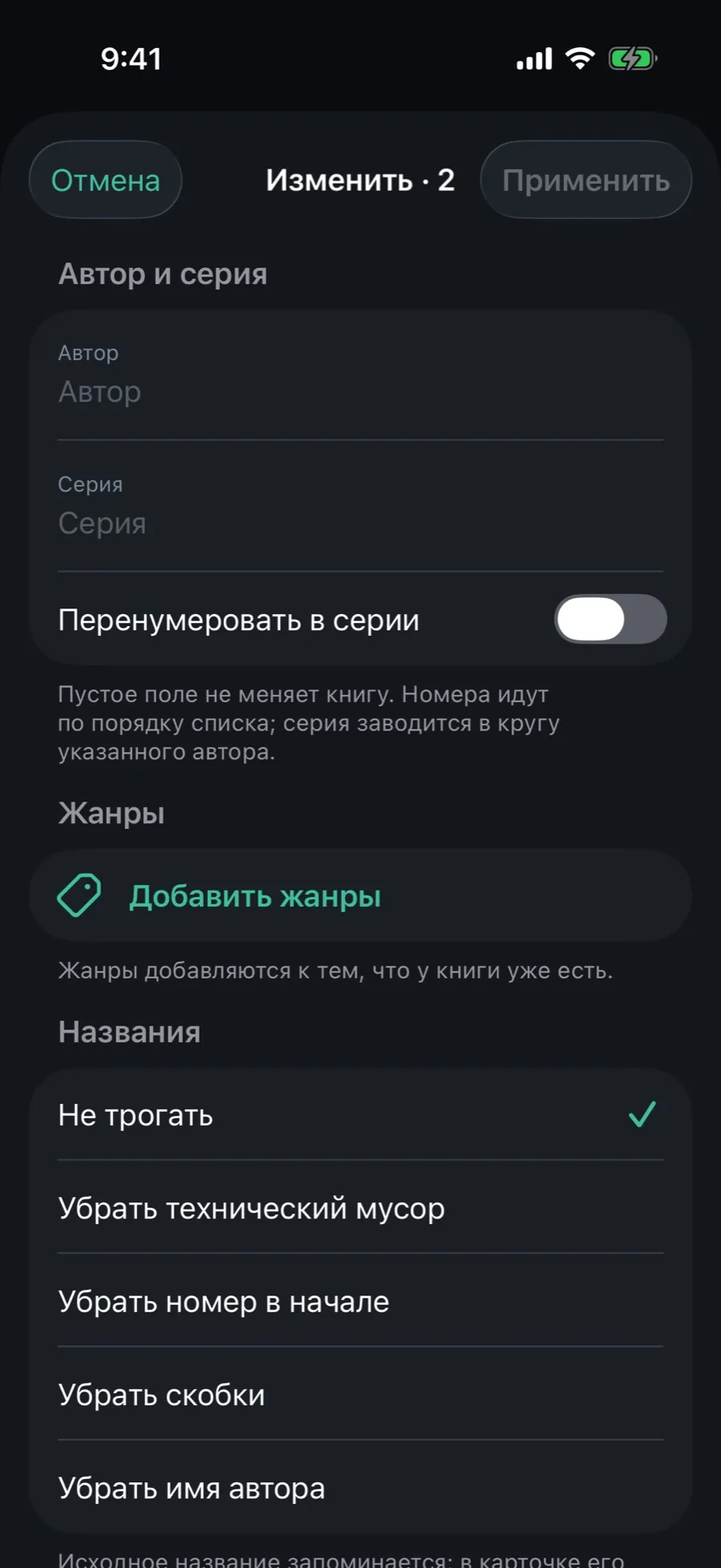
The “Edit · N” sheet opens. An empty field changes nothing — fill in only what you are fixing.
“Author” and “Series” are set for all at once; the “Renumber in series” switch lays the numbers out in list order.
“Add genres” adds to what a book already has rather than replacing it.
In “Titles” pick a rule: “Remove technical junk”, “Remove leading number”, “Remove brackets”, “Remove author name”. “Leave as is” is the default.
Tap “Apply” — it all goes through in one transaction.
The original title is kept: you can always restore it in the card. The files on disk are not renamed.
What editing does not do
Write tags back into the files: edits live in the catalog, the files on disk stay as they arrived.
A change history you can step back through: what comes back is the original value of the field, not the previous edit.
Tags on a book: for now they can only be set as a smart-shelf condition.