A book of a hundred files is one timeline, not a hundred tracks. How exactly it is put together shows on the “Structure and files” screen: what follows what, how long it runs and where it came from.
The app works out the order of the files by itself — from the numbers in the names, the track tag and natural sorting, where 2 comes before 10. When it guesses wrong, the order is fixed by hand and the book’s timeline is recalculated for you.
All of this is free. The “chapters” and “files” rows appear on the book card for the edition that is open right now.
01/03
What the book is made of
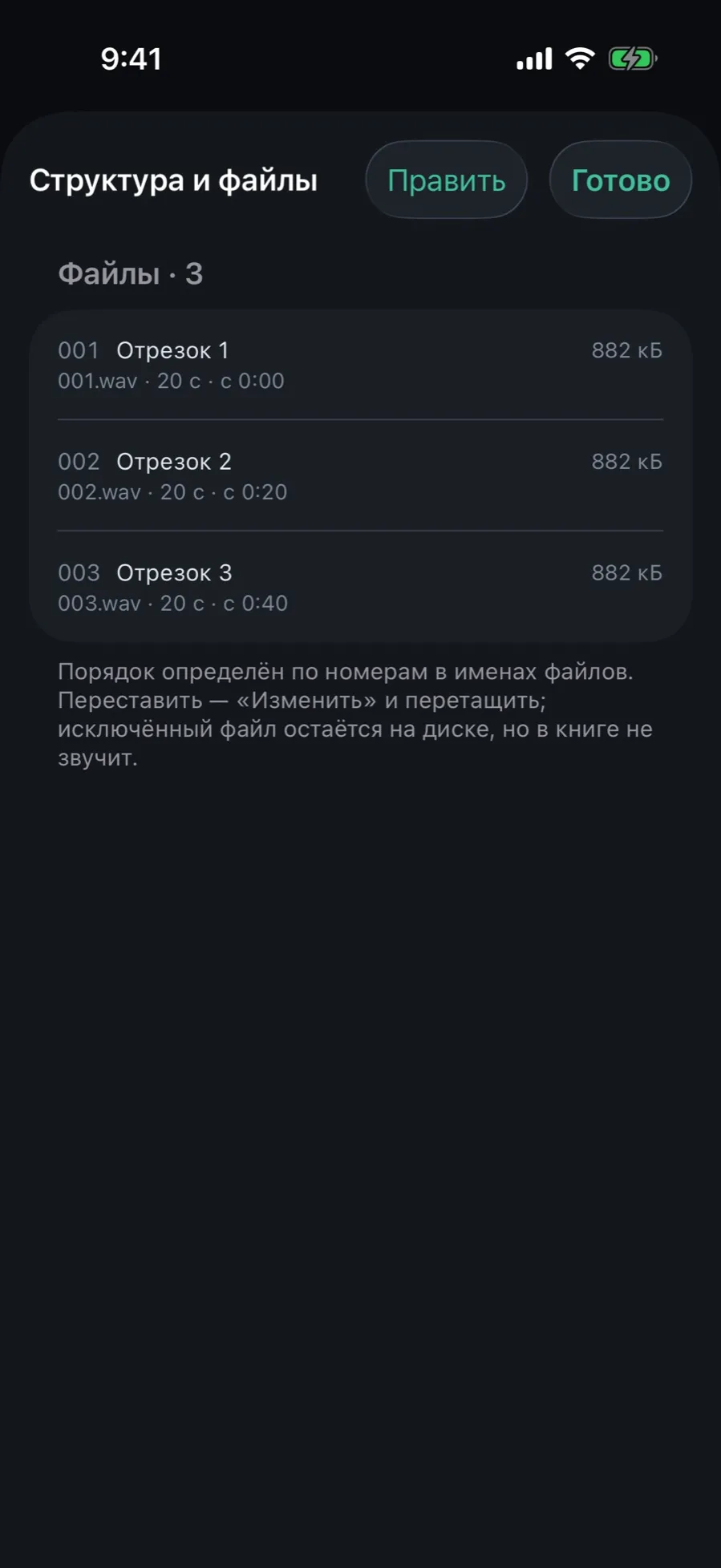
The list of files in the order they play, with a label, a length and a place on the book’s timeline.
Open the book card and tap the “files” row — the count sits beside it.
Every row: the order number, the label, the file name on disk, the length, the start time within the book and the size.
Tap “Edit” to reorder the files by dragging.
Swipe a row left: “Label” gives the file a name of your own instead of the one on disk, “Exclude” drops it from the book.
An excluded file stays on disk but does not sound in the book: that is how a studio jingle or a duplicate goes. Bring it back with the same swipe and the “Restore” button.
02/03
The book’s chapters
Chapters come from the file rather than being invented: the built-in M4B markers, `CHAP` frames in ID3 tags, a `.cue` next door — and only if there is nothing at all does a file become a chapter.
On the book card tap the “chapters” row — the count sits beside it.
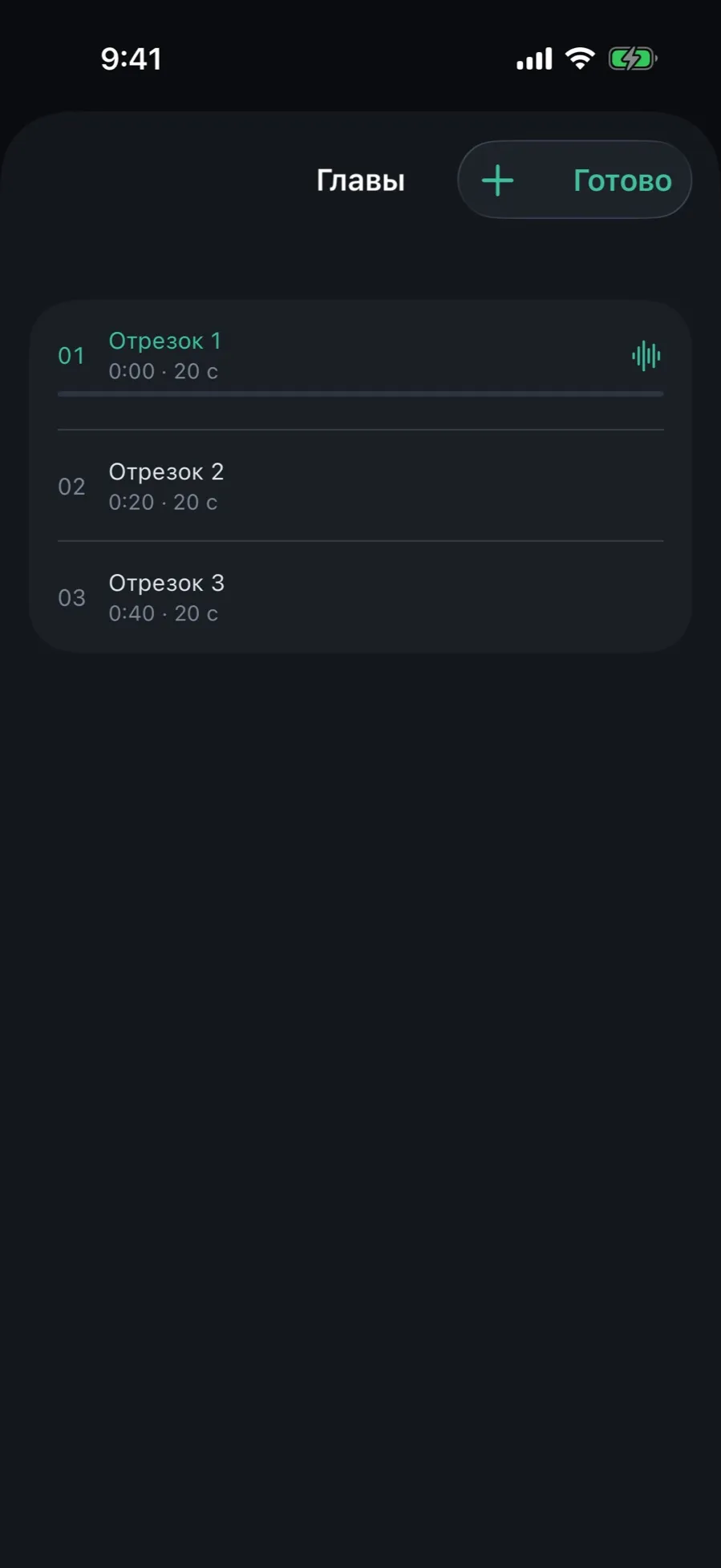
The list shows the number, the title, the start time and the length of every chapter.
The current one is highlighted and marked with a progress bar.
Tap a chapter to listen from there.
If no markers were found in the tags or in the file, the app says so plainly and counts every file as a chapter.
03/03
Fix the chapters by hand
When the files carried no markers but you would still like to listen by chapter, the boundaries go in by hand — by splitting the current chapter.
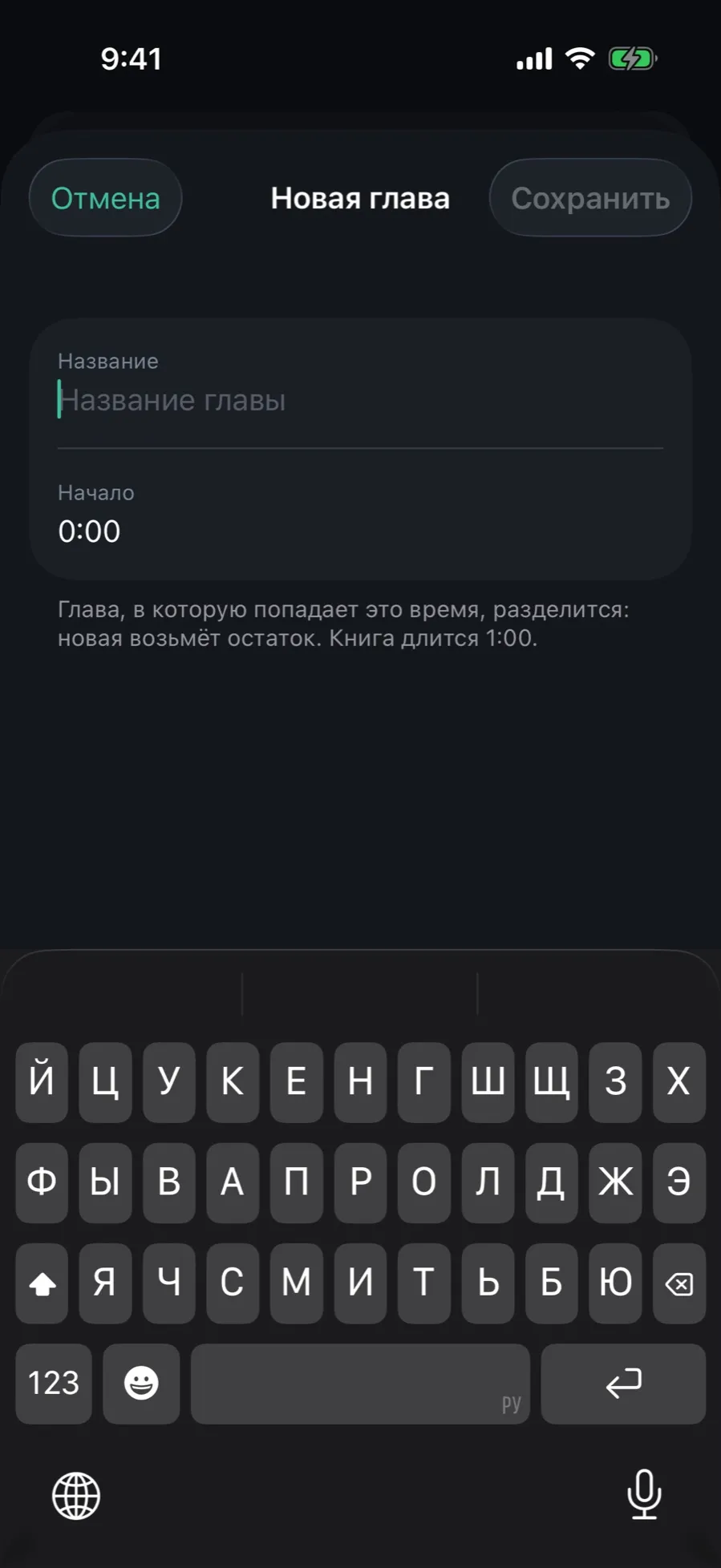
In the Chapters sheet tap “+” in the top right corner.
Type the “Chapter title” and the “Start” — a time in h:mm:ss or mm:ss.
The chapter that time falls into will split: the new one takes the remainder.
Tap “Save”.
An existing chapter is edited by swiping its row: rename it, move its start or drop the boundary — the time goes to the neighbouring chapter.
A start can only be moved between the previous chapter’s start and this one’s end. The only chapter cannot be deleted, and chapters that came from tags are not rebuilt by hand edits.
What the make-up screen does not do
Rename files on disk: the label lives in the catalog, the file name stays as it was.
Read OverDrive markers from MP3 tags.
Different covers per chapter: there is one cover per edition.