01/05Five views of one collection
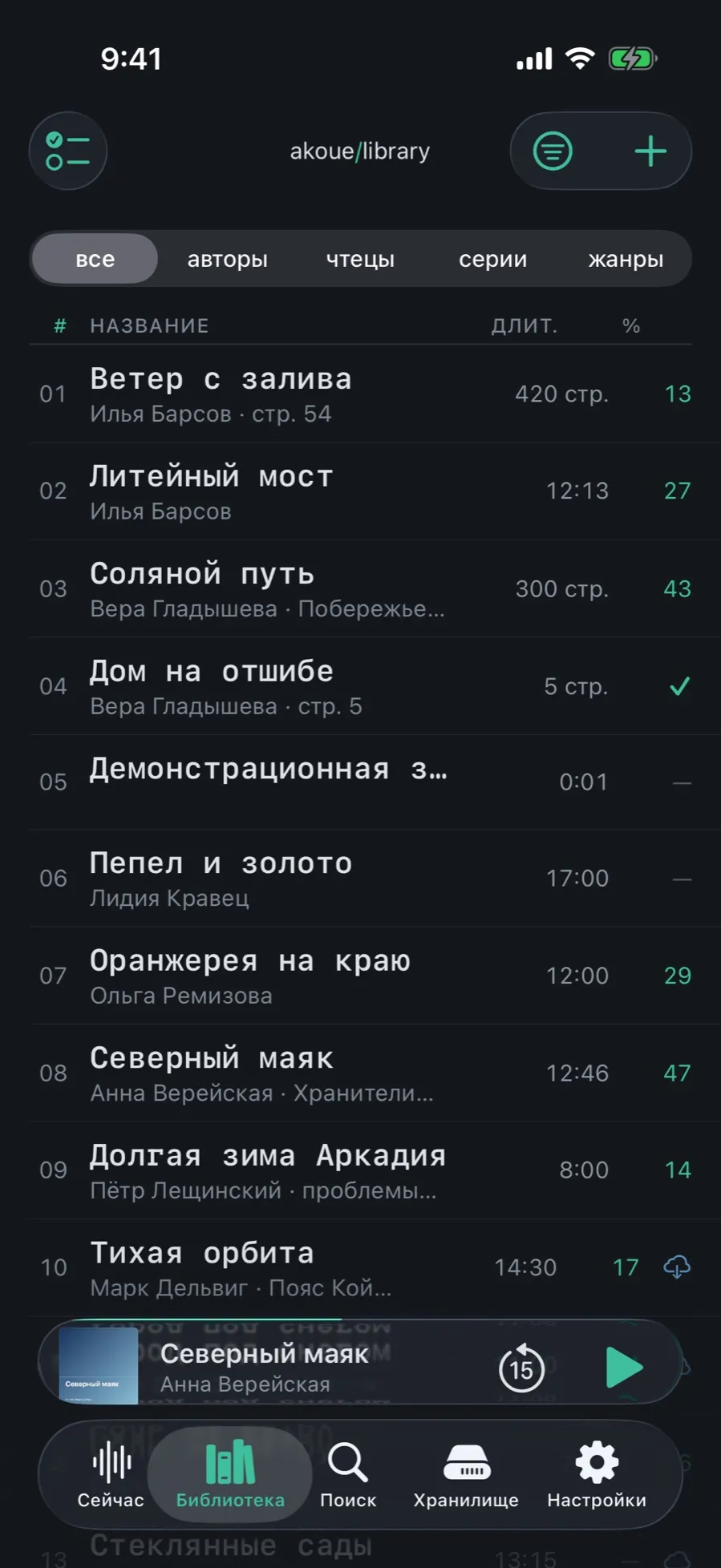
The same library laid out differently: as a list of books, by authors, by narrators, by series, or down the genre tree.
- Open the Library. The grouping strip sits under the header with “all” selected.
- Tap “authors”, “narrators”, “series” or “genres” — the list rebuilds without losing the sort order or the filters.
- Under “all” a book row shows the number, title, author, length and per cent listened.
- A cloud next to the per cent means the book is offloaded to iCloud; a check mark means it is finished.
The grouping is remembered: next time the library opens where you left it.
02/05Pick a sort order
Twelve fields: from date added and last played to the rating and how much space the book takes on the device.
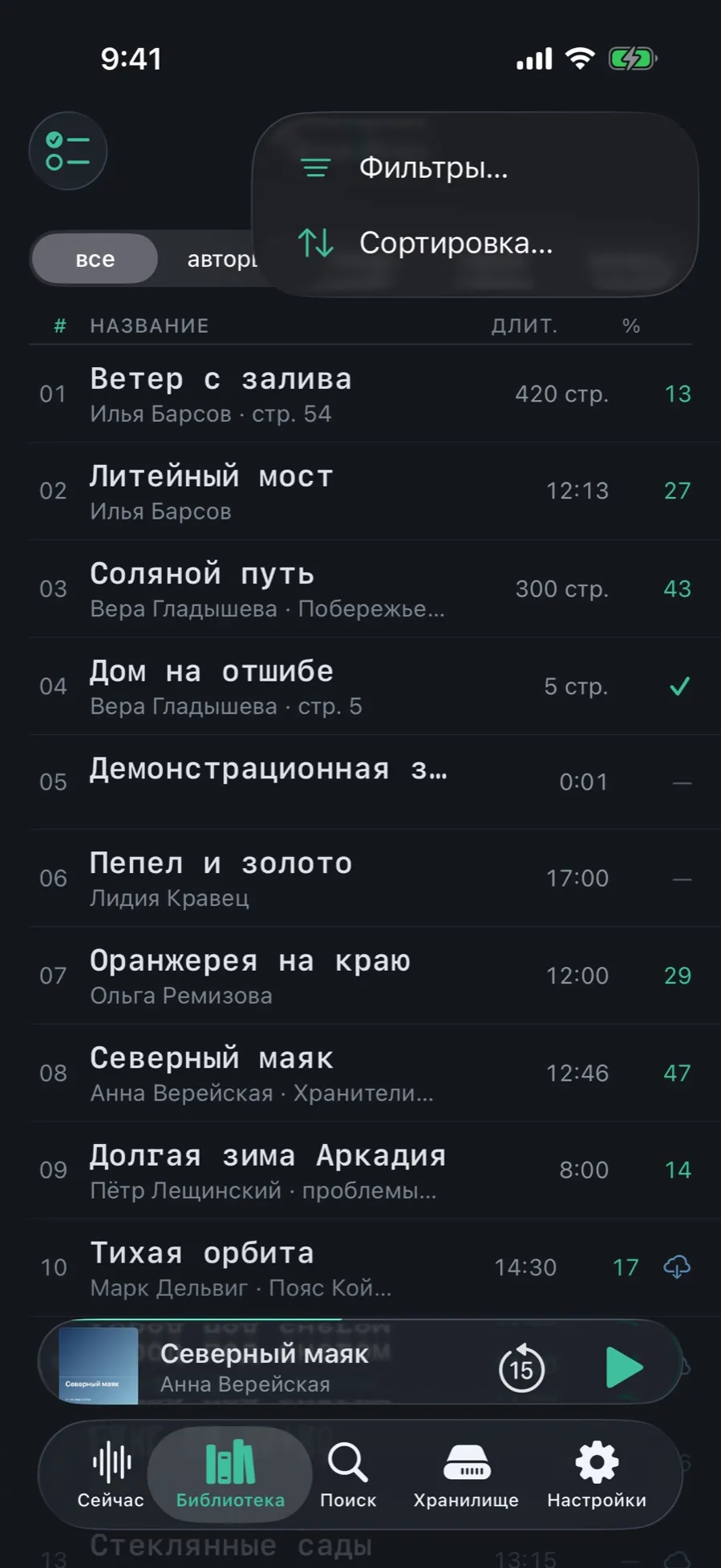
- Tap the lines icon in the top right corner.
- Choose “Sort…”.
- Pick a field: date added, last played, title, sort title, author, series and number, length, size on disk, per cent listened, rating, year, space on device.
- The direction is switched in the same place: newest first or oldest first.
The chosen sort order stays visible on the screen rather than hiding in a menu, and is remembered until next time.
03/05Build a filter
Sixteen conditions, and they all stack. While you build, the line at the top counts how many books would match.
- In the same menu choose “Filters…”.
- At the top of the sheet: “N of N books match” — the number is recounted on every tap.
- Tick what you need: status, storage, period added, length, whether there are editions, edition type, progress.
- Authors, narrators, genres, series and individual books take several values at once: tap “choose…” in that section.
- Tap a row a second time and the condition flips to “none of” and turns red.
- At the bottom are the switches “Favourites only”, “Kept on device only”, “Has bookmarks”, “Has metadata problems”.
- Tap “Show N”. “Reset” clears everything at once.
Active filters hang above the list as removable chips: you can see exactly what is narrowing the view.
05/05Pick several books at once
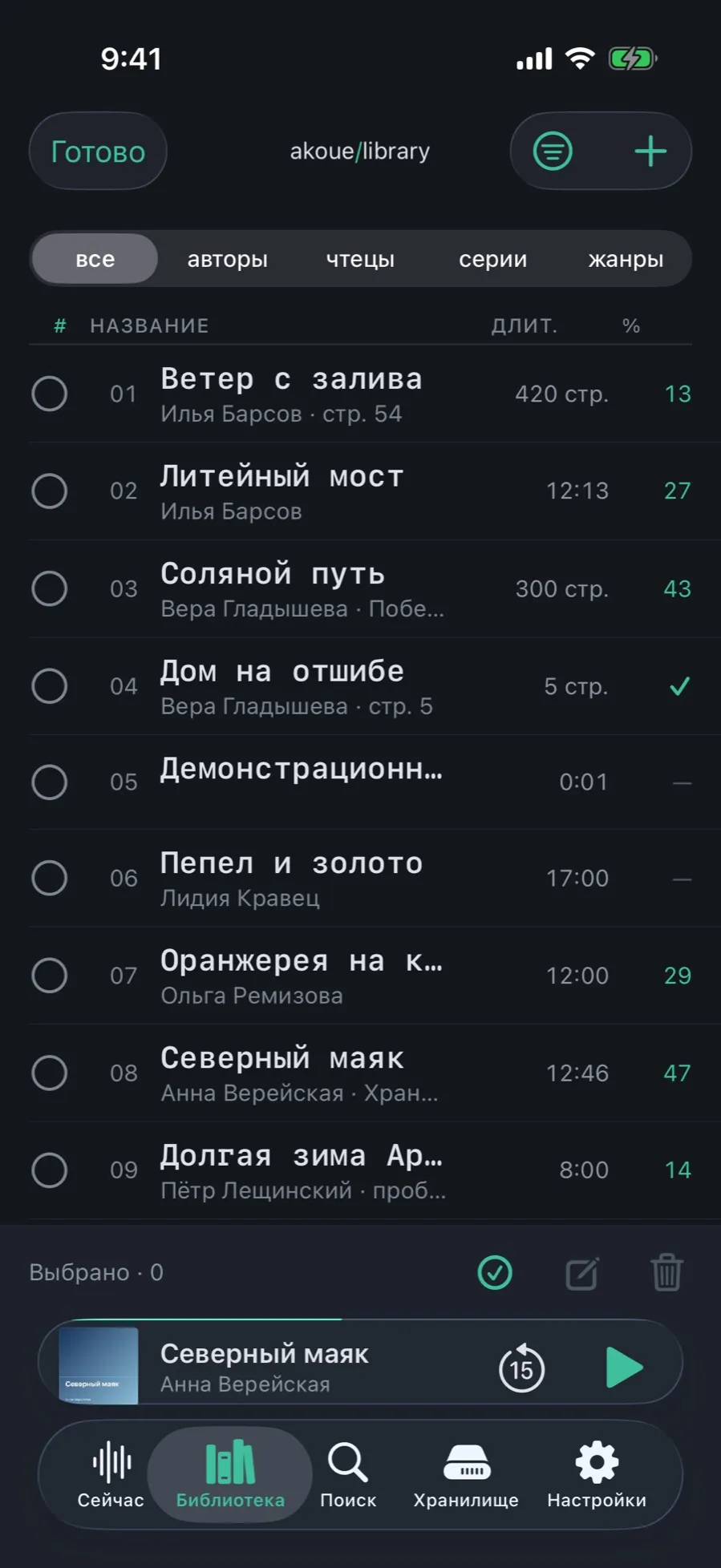
When there is a lot to change, there is no point going book by book: selection mode puts a circle on every row and an action bar at the bottom.
- Tap the list-with-checks icon in the top left corner.
- Tick books with the circles on the left. The bottom counts “Selected · N”.
- Three icons at the bottom right: mark as read, edit together, move to trash.
- “Edit” opens bulk editing: a common author, a series with renumbering, genres, title clean-up rules — in one transaction.
- Tap “Done” to leave selection mode.
What the library does not have
- A filter by tags or by language on the Filters sheet: language and tags are only available as smart-shelf conditions.
- A switch of its own between list and grid: the look of the list is set by the theme, not by a separate setting.
- Dragging books into a manual order: the order comes from the sort field.